You can use the XunL AI image upscaler to create a larger pixel version of a small product image, inspect the result and download it without registering. It offers 1x enhancement, 2x and 4x enlargement, runs the model in your browser and exports without a watermark.
A useful result needs two checks: the file must meet your target pixel dimensions, and its visible details must still agree with your source. This worked example passes the dimension check while exposing an issue with small lettering. That makes it a practical way to decide whether an enlarged image is suitable for a product page.
Decide which pixel dimensions you actually need
Start with the destination and the original file's properties. A 192 × 144 px image enlarged 2x becomes 384 × 288 px. A 4x version becomes 768 × 576 px. Those are dimensions you can verify in the downloaded file. Check the current rules of your product platform for its minimum dimensions, aspect ratio and content requirements.
A scale factor applies to both width and height: 2x produces four times as many pixels, while 4x produces sixteen times as many. Changing a resolution label to 300 DPI leaves the pixel dimensions unchanged unless the image is also resampled.
Ordinary resizing interpolates pixels. AI upscaling also predicts edges and texture. Predicted detail needs checking against the original artwork or product, particularly for model numbers, logos and fine markings. Use an available high-resolution original, vector file or fresh photograph as the first choice.
What happened to our 192 × 144 px test image
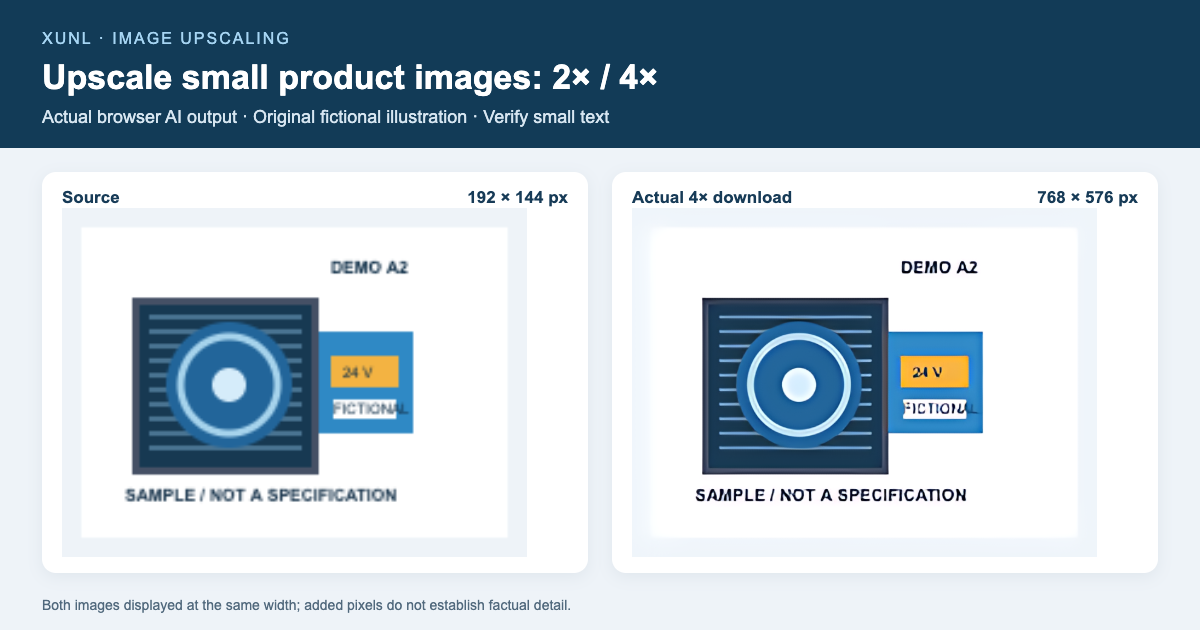
We drew a fictional product illustration with fine horizontal lines and the labels “DEMO A2,” “24 V” and “FICTIONAL.” These are demonstration markings, not specifications for an actual product. The input PNG contains 7,129 bytes.
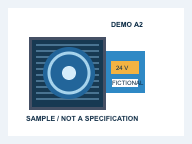
On October 24, 2026, we used the live XunL page with CPU processing and PNG export. We downloaded the results and checked their dimensions and sizes. The English page also produced the same 4x PNG as the Chinese page.
| Version | Downloaded width × height | Total pixels | File size |
|---|---|---|---|
| Original input | 192 × 144 | 27,648 | 7,129 bytes |
| 1x enhancement | 192 × 144 | 27,648 | 22,283 bytes |
| 2x enlargement | 384 × 288 | 110,592 | 80,880 bytes |
| 4x enlargement | 768 × 576 | 442,368 | 311,402 bytes |
The 1x result keeps the same dimensions while changing the picture and its encoding. Its larger file size is a useful reminder that enhancement and compression serve different tasks. The 2x and 4x files add pixels and take more storage in this example; their exact size ratios should not be used to predict other images.
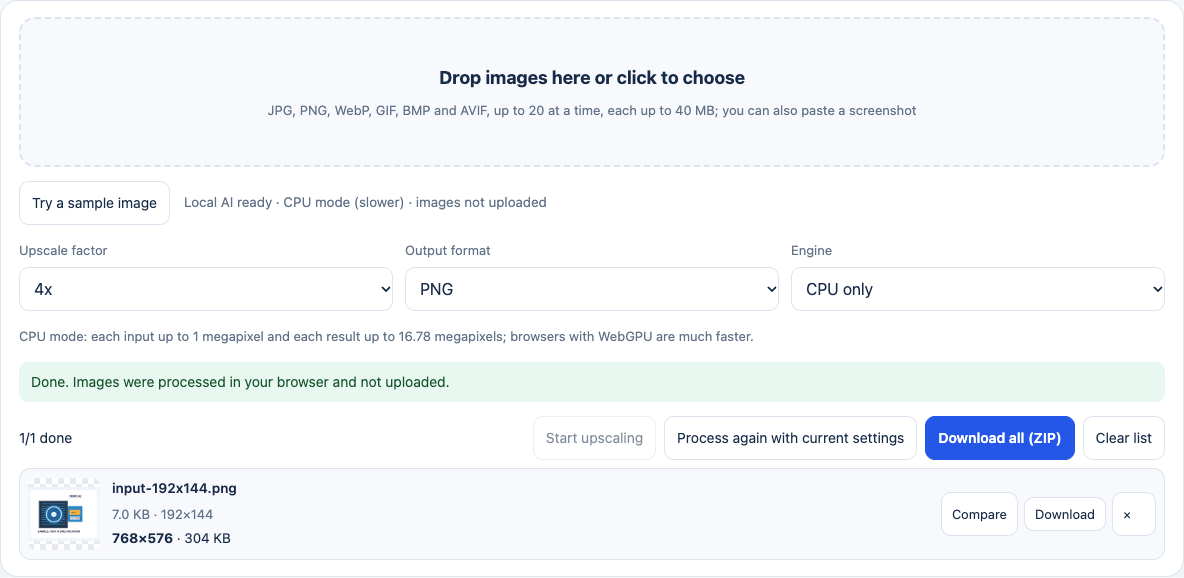
These are measured files from one small illustration, not a general speed or quality benchmark. Larger inputs, your device and the initial runtime/model download can change the waiting time substantially.
Create and download the enlargement
- Open the image upscaler and choose 2x or 4x before adding the image. PNG is a useful initial format for inspecting artwork with lettering and thin lines.
- Keep automatic processing selected, or choose CPU if needed. Drop in your file, use the file picker or paste an image. Processing starts after the image is added.
- Wait for the completed dimensions in the result list. If you change the settings, use “Process again with current settings” to generate a new result.
- Open the comparison view, inspect the subject and download the actual file. Completed images can also be downloaded as a ZIP.
- Check the saved file's width and height, inspect it at 100% and then preview it at the size it will occupy on the product page.
PNG or WebP can retain transparency. JPEG fills transparent areas rather than preserving an alpha channel. Its quality setting affects encoding; it does not recreate information missing from the source.
Inspect lettering before accepting sharper edges
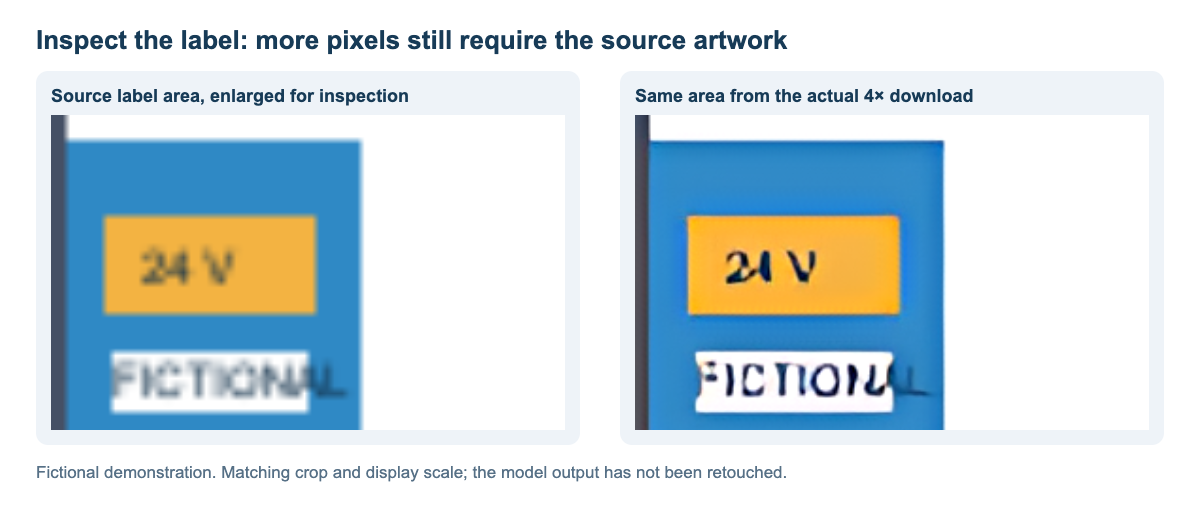
The 4x version gives the circular edge a crisper appearance, but the small “FICTIONAL” label changes shape. The comparison below uses the same crop and display scale for both images. We have not retouched the model output.
Use a repeatable acceptance check:
- Letters and numbers: Compare every character with approved source material. Pay particular attention to 0/O, 1/I, voltages, dimensions and tolerances. Ask for the original file when the source text is unreadable.
- Logos and product outline: Check wordmark strokes, holes, connectors and edges against the actual product or approved artwork.
- Repeated lines and texture: Look for merged gaps, broken parallel lines, halos and newly invented surface patterns.
- Final display size: Review at 100% first, then at the real page size. Choose the smallest checked version that meets your destination's requirements.
If the image needs a reliable specification label, obtain a clear source or rebuild the text using confirmed information. If you have an SVG, a design file or a rendering scene, exporting it again at the desired size gives you direct control over those details.
A free Upscale.media alternative for this specific task
XunL is an alternative worth trying when you want to enlarge a few local product images, avoid registration and download the result directly. Compare the workflow you need as well as the result.
At the time of checking, Upscale.media's official pricing page lists free credits as well as subscription and pay-as-you-go plans. It also describes bulk processing and API integration. Its free entry point may suit an occasional job, while its commercial options are relevant to an ongoing integrated workflow. We did not run a head-to-head quality test and make no quality ranking between the products.
XunL's current browser workflow has these limits:
| Item | Current XunL scope |
|---|---|
| Batch and file size | Up to 20 images; the page labels the file cap as 40 MB each |
| Output | Up to 16,777,216 pixels; maximum side length 8,192 px |
| CPU input | Up to one million pixels per image; processing speed depends on the device |
| Scale | 1x enhancement, 2x or 4x |
| Download | PNG, JPEG, WebP or a supported original format; individual files or ZIP |
The page downloads its runtime and model from the website. Image decoding, model inference and export take place in the browser. The page also contains site advertising, so local image processing should not be read as a claim that the webpage makes no network requests. Refer to the current tool page for supported features and limits.
Prepare the checked result for its destination
Keep a checked larger version as your working copy, then create the delivery file for the website. If an upload limit requires a smaller file, follow the separate 200 KB product-image compression workflow. For cropping, annotations and layout, see the Photoshop alternative workflow for product-image edits.
For print, check the pixel density at the intended physical size and make a proof. Inspect predicted texture and lettering closely. Re-exporting or photographing the product again is worthwhile when it can resolve the original source problem.
Common questions
Why does 1x enhancement change the file size?
The current tool calculates with a 4x model and reduces that result to the requested size for 1x or 2x. A 1x file keeps the original width and height, but the picture has been processed and encoded again. In this example, the PNG grows from 7,129 to 22,283 bytes.
Can I use a newly readable model number as proof of a specification?
Verify the number against a traceable original, the actual label or approved documentation. A model can produce confident-looking but incorrect character shapes. Our label example shows why a sharper-looking result still needs that check.
Why is the tool using CPU processing?
Automatic mode attempts WebGPU and falls back to CPU when the environment does not support it or initialization fails. Try a current Chrome or Edge browser and a small test image. CPU mode also limits the input pixel count, so reducing the output scale does not resolve an input that already exceeds that cap.
Put this guide to work for your business
Create a company account to try website monitoring and the inquiry workbench. Compare Pro plans for your team’s ongoing needs.
No card required. The trial returns to Free when it ends. Paid monthly credits are not included in the trial.