For an existing product image that needs a tighter crop, a model label, and a PNG export, you can use the XunL online photo editor. It runs in your browser without installation or an account, and the editing work stays on your device.
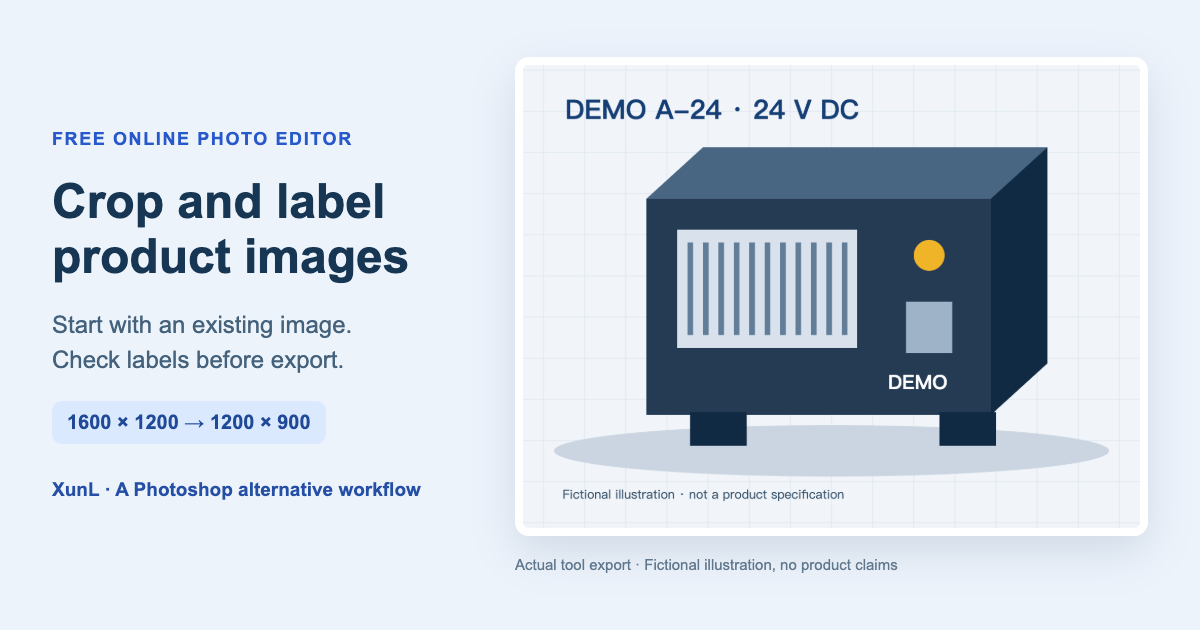
This walkthrough starts with a fictional equipment illustration and ends with a checked image plus an editable project. It addresses two common handoff problems: resizing the whole picture when you meant to crop its borders, and sending a flat PNG when someone still needs to change the text. DEMO A-24 and 24 V DC are demonstration text, not specifications for a real product.
Choose a replacement by the file you need to deliver
Simple RGB images for a website, product explainer, or sales document are a useful starting point for a browser editor. XunL supports layers, text, cropping, basic adjustments, selections, masks, and local AI cutout. This example uses an existing image and manual layout.
| Required delivery | A suitable approach |
|---|---|
| A flat image with a model label | Keep image and text on separate layers, then export PNG |
| A layout that needs later wording changes | Save the XunL editable project as well as the image |
| An editable PSD for a customer or designer | Use a tool that saves the required PSD; XunL does not export PSD |
| CMYK print production or complex PSD effects | Follow the print provider's or designer's professional workflow |
Photoshop also has a browser version. Adobe's current online Photoshop page presents a free editing entry point and paid membership upgrades; available features, trials, and plans depend on the current regional offer. A free Photoshop alternative should therefore be judged against the actual task and output format, rather than an assumption that browser editing itself is unique or that every Adobe feature requires payment.
Set up a small, verifiable example
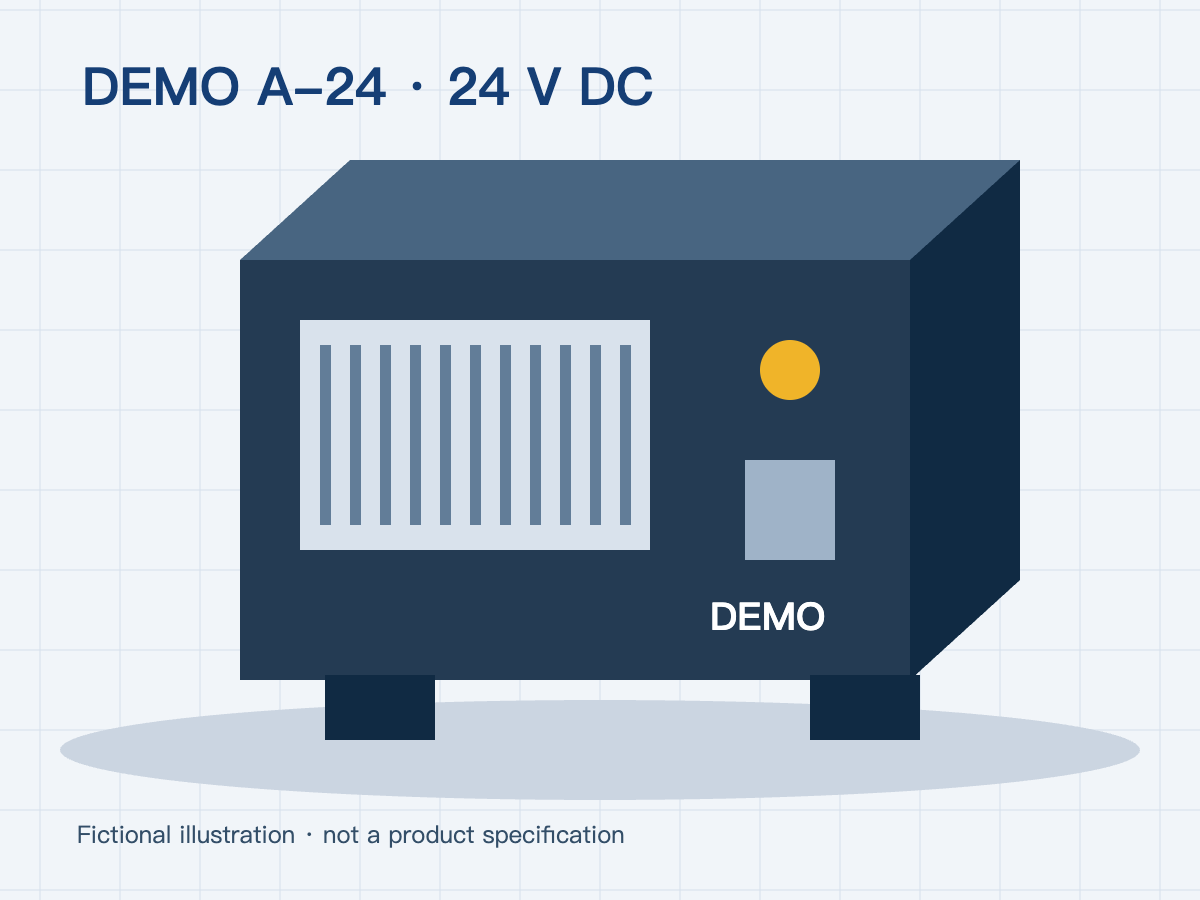
Our source is a 1600 × 1200 PNG with a fictional machine centered in the frame. The target is 1200 × 900 pixels, with two new text layers:
DEMO A-24 · 24 V DC, set in bold at 52 pixels.Fictional illustration · not a product specification, at 24 pixels.
For real products, copy approved model names and specifications from confirmed documentation. Check voltage, AC versus DC, decimal points, and model suffixes before editing. Adding a label must not create an unsupported product claim.
Also check the destination's image rules. A captioned explanatory image may have a different role from a marketplace main image. The dimensions used here are an example, rather than a universal platform requirement.
1. Crop the canvas without stretching the product
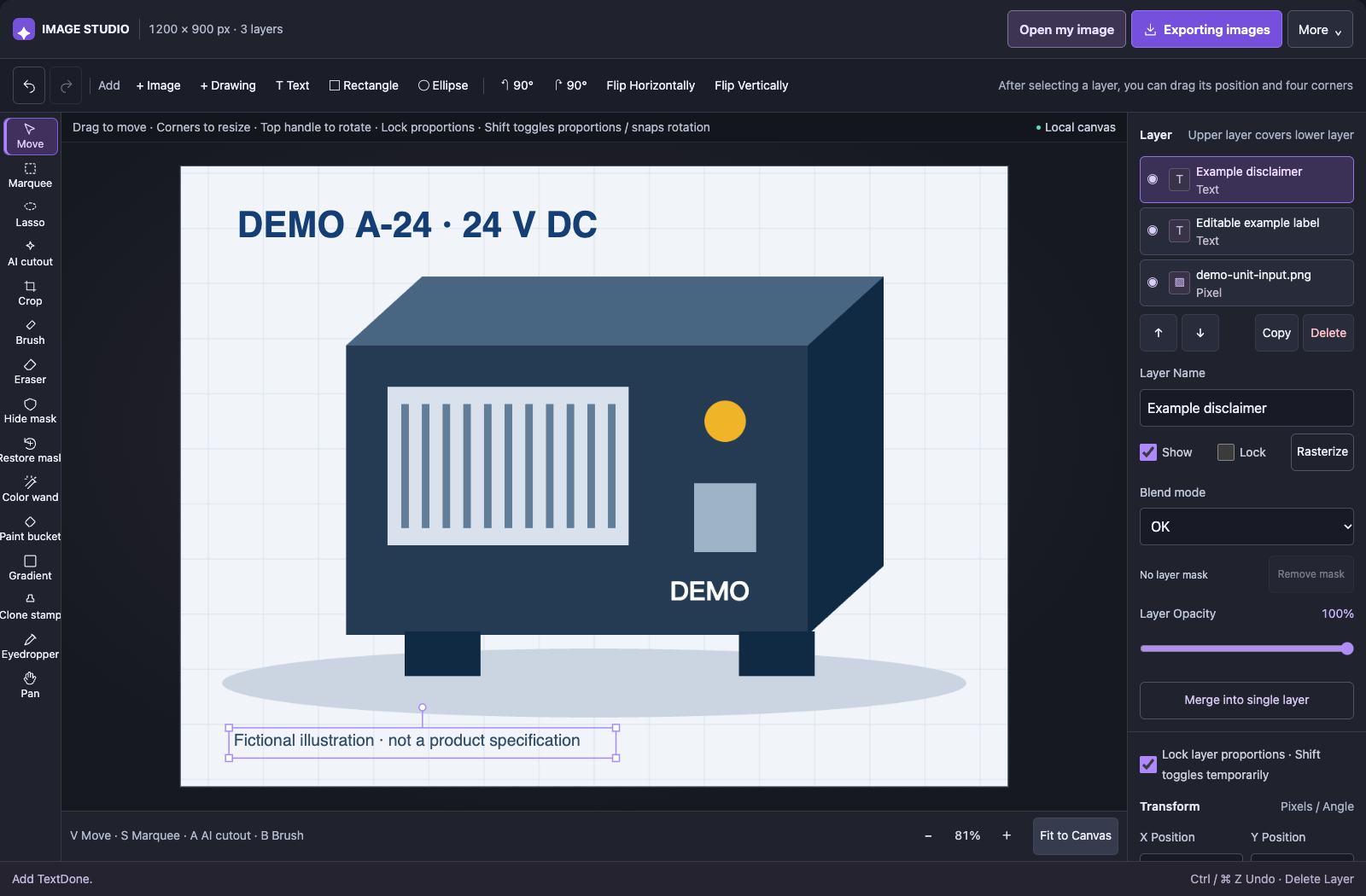
Open your own image with Open my image. The page loads an example design for trying the controls; replace it with your file and check the dimensions shown in the workspace.
Under More, enter the fullscreen editor. Expand Canvas Dimensions in the right panel:
- Set Resize method to Canvas only · Keep layer sizes.
- Enter width 1200 and height 900, with the anchor centered.
- Apply the size and check that the workspace reads 1200 × 900 px.
Centering this smaller canvas removes 200 pixels of visible area from each side and 150 from the top and bottom. The product's proportions stay the same. To make the entire picture smaller, choose image resizing instead. For an uneven crop around a particular detail, use the crop tool to choose the region.
Check the product's feet, connectors, cables, and mounting holes after cropping. A tidy outline is not enough if a feature needed to understand the product has disappeared from view.
2. Add text on its own layers
Click Text and enter the model line. In this example, the main label uses 52-pixel bold text, dark blue #153e75, at X=70 and Y=48. It sits in the open space above the equipment instead of covering a visible connection or control.
Add a second text layer for the fictional-example disclaimer, at 24 pixels near the bottom. The document now has three layers: the original image and two text layers. Layers higher in the list cover content below them, so select the correct layer before moving or changing it.
If wording does not fit, shorten it or make more room. A text background bar can help with contrast, but it should not cover a feature that the reader needs to see. Important specifications should also appear in the surrounding page text; they should not depend on tiny lettering inside a thumbnail.
3. Save the project, then export the image
Use Save project under More to download the .xunl.json file. This keeps the layers for future changes in XunL. It is a local project file, rather than PSD or a cloud document synchronized between devices. Keep the original source image separately, too.
Next, open the export dialog, choose PNG, and keep the scale at 1×. Our example combines text and a graphic, so PNG preserves those edges without introducing a lossy JPEG step. JPEG can suit photographs, but does not preserve transparent areas. WebP is another option for web delivery; compare the actual result and size on your image.
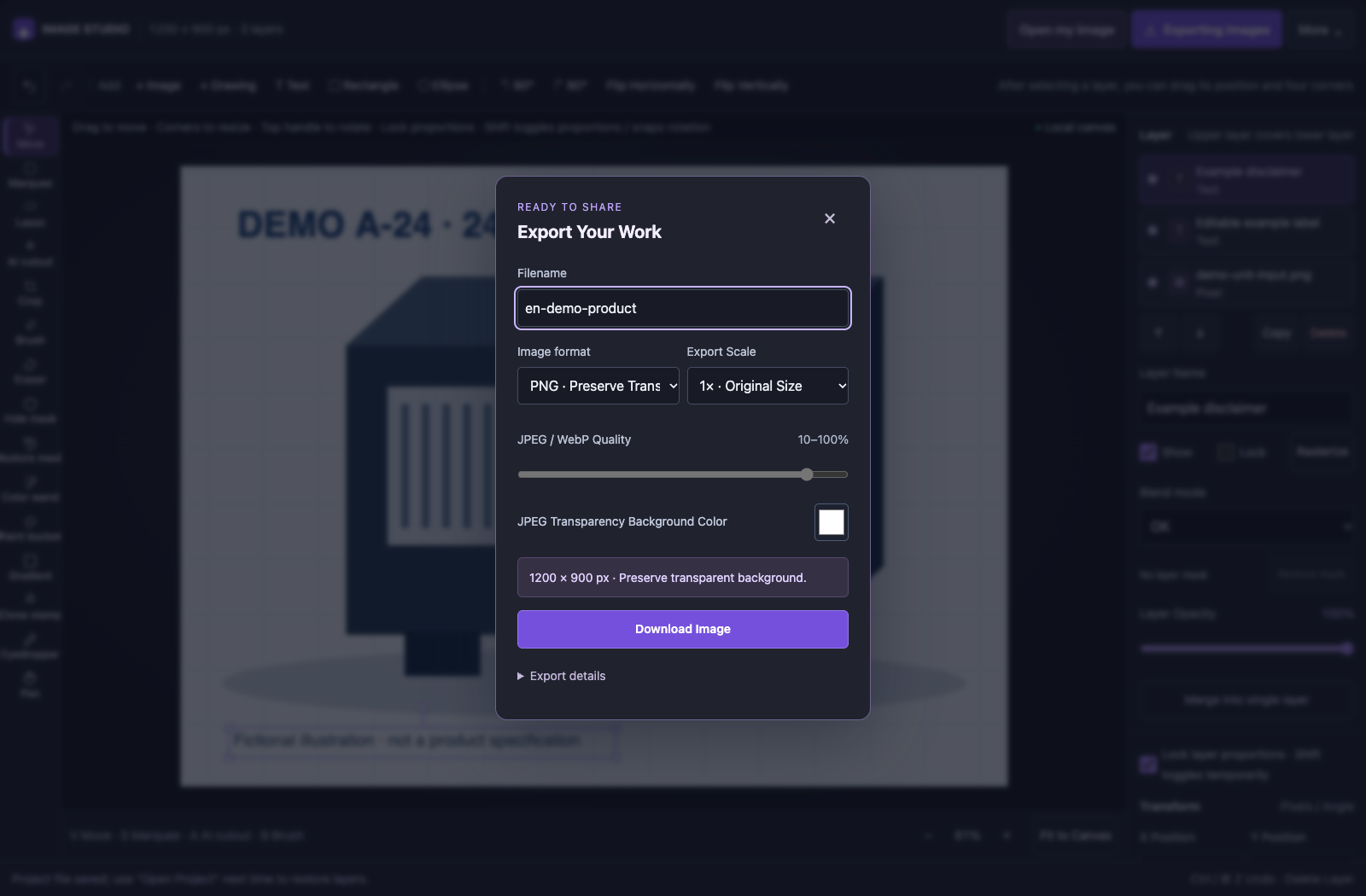
Saving the project and exporting the PNG serve different purposes. The PNG is ready to view or upload. Its lettering is now part of a flat pixel image, so someone receiving only that file cannot change it as an original text layer.
4. Check the downloaded file and reopen the project
On October 24, 2026, we ran this workflow in the English tool, downloaded the PNG, and reopened the saved project in a fresh browser context. The PNG measured 1200 × 900 pixels. The recovered main label remained an editable text layer containing DEMO A-24 · 24 V DC.
Before handing off a real image:
- Check the downloaded file's dimensions. The zoom percentage in the workspace changes your view; it is not the export size. Exporting at 1× also cannot restore detail from a source that was already reduced.
- Inspect at 100% and at its intended display width. Check letter shapes, decimal points, units, and cropped edges. The 24-pixel disclaimer in this example becomes small in a thumbnail, so it should not carry essential buying information.
- Reopen the project and change a character. This confirms that the editable handoff works. Keep source images, the project, and final exports as separate files.
This exercise verifies cropping, new text layers, project recovery, and PNG export for the supplied example. It is not a compatibility benchmark for every PSD or a guarantee for complex documents on every device.
What to check before opening a PSD online
XunL documents support for 8-bit RGB or grayscale PSD files up to 100 MiB. Imported text uses the pixels stored in the PSD, so its wording cannot be edited character by character. Adjustment layers, layer styles, and smart objects are not retained as their original editable effects. PSB, CMYK, and 16/32-bit documents are outside the supported scope; PSD export is unavailable.
The working canvas is limited to 12 megapixels and 8192 pixels per side, with up to 24 layers. Pixel layers and masks share a pixel budget. Ordinary image files have a 40 MiB file limit. Large sources may be reduced, and memory or layer budgets can constrain complex designs. Check the actual working dimensions before relying on an export. The tool page lists the full limits.
If PSD is the required handoff format, Adobe's Photoshop on the web format documentation lists PSD import and export. Validate the specific file and effects in the intended workflow: opening a file is only one part of preserving an editable design.
Common questions
Can I change a product model label without Photoshop?
You can add a separate caption in an open area of an image. If a different model is physically printed on the product, use the correct model's source photo or clearly identify the image as illustrative. Do not retouch a nameplate to present a different physical product as the one shown.
Will PNG automatically remove a white background?
PNG can retain transparency that already exists in the composite; choosing it does not remove an image's background. For that task, follow the remove.bg alternative workflow for product photos, then inspect the outline and the product's real color.
Are the pictures uploaded?
The tool documents local browser processing for decoding, layer compositing, PSD parsing, and export. Page advertising can contact its own network services. Local autosave is not a dependable backup or cross-device sync, so download important exports and save the project yourself.
Open the XunL photo editor and complete this crop, label, export, and project-recovery check with one approved product image before reusing the layout for more items.
Put this guide to work for your business
Create a company account to try website monitoring and the inquiry workbench. Compare Pro plans for your team’s ongoing needs.
No card required. The trial returns to Free when it ends. Paid monthly credits are not included in the trial.