For a product-image upload with a 200KB file limit, start with the accepted formats and minimum pixel dimensions. Then resize and compress a copy. Open the XunL image compressor, choose JPEG or WebP, and enter a target size. The manual workflow runs in your browser without registration.
For product images, passing the size check is only part of the job. Model numbers, label text, connectors and surface detail must remain useful to the buyer. This walkthrough uses a fictional product illustration with small text so you can see what to check before replacing your original.
Check what “200KB” means for your upload
Write down three requirements: accepted file formats, minimum width and height, and the file-size limit. A compressor's marketplace preset does not replace the receiving platform's current image rules.
XunL's target field uses 1KB = 1,024 bytes. A target of 200 therefore allows a budget of 204,800 bytes. A website that interprets its limit as 200,000 bytes can reject a file near that budget. For a strict 200KB ceiling, try 190 as an initial target, then check the downloaded file's actual byte size and test the upload. The margin is a practical starting point, not a universal quality setting.
Keep the pixel requirement in view. If the destination requires a width of at least 1,600 pixels, shrinking to 800 pixels is not a successful fix. When high resolution and fine label text cannot both fit the file budget, use an allowed detail-image or document slot for the readable version.
A reproducible product-image setup
Our original is a 2,400 × 1,800 PNG weighing 2,489,301 bytes. It is a fictional housing illustration created for this guide, with a DEMO-24 model label, a sample serial number and the characters “0 O / 1 I / 8 B.” It contains no customer data or real certification claims.
- Drop the image into XunL and retain your original separately.
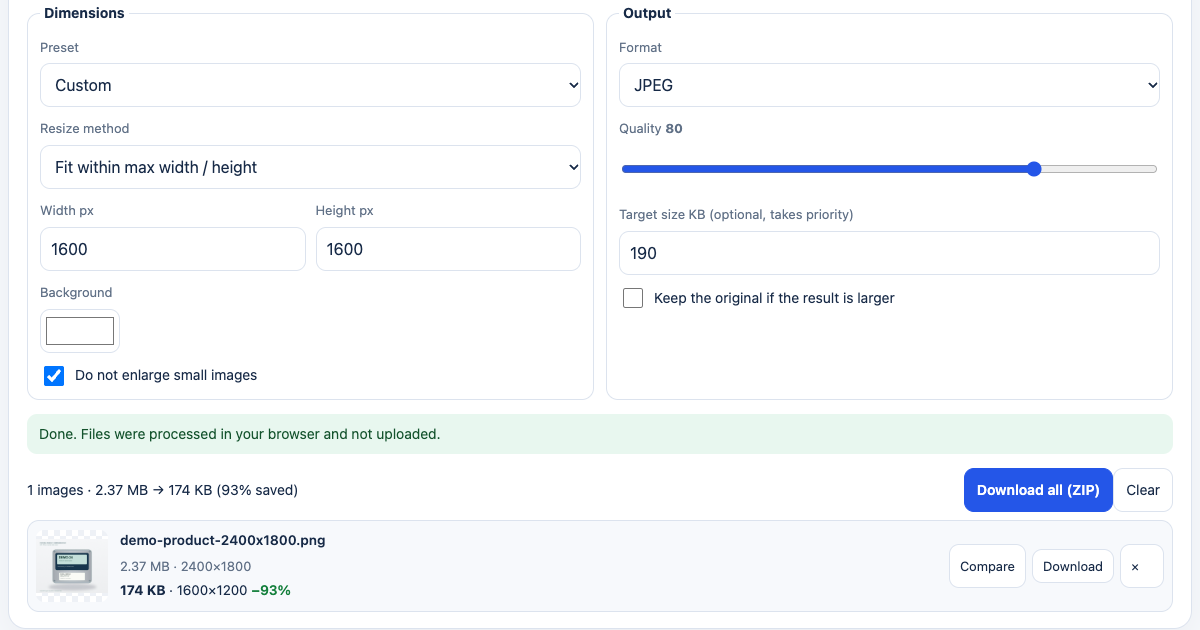
- Under Resize method, select Fit within max width / height. Set both dimensions to 1600. The 4:3 source becomes 1,600 × 1,200; it is not stretched into a square.
- Choose JPEG. This sample has an opaque light background. If yours needs transparency, use the format guidance below.
- Enter 190 under Target size KB. The target takes priority over the quality slider, so a visible slider value of 80 does not mean this output necessarily used quality 80.
- Wait for the result, use Compare, and download. Check its bytes, dimensions and detail before testing it in the receiving system.
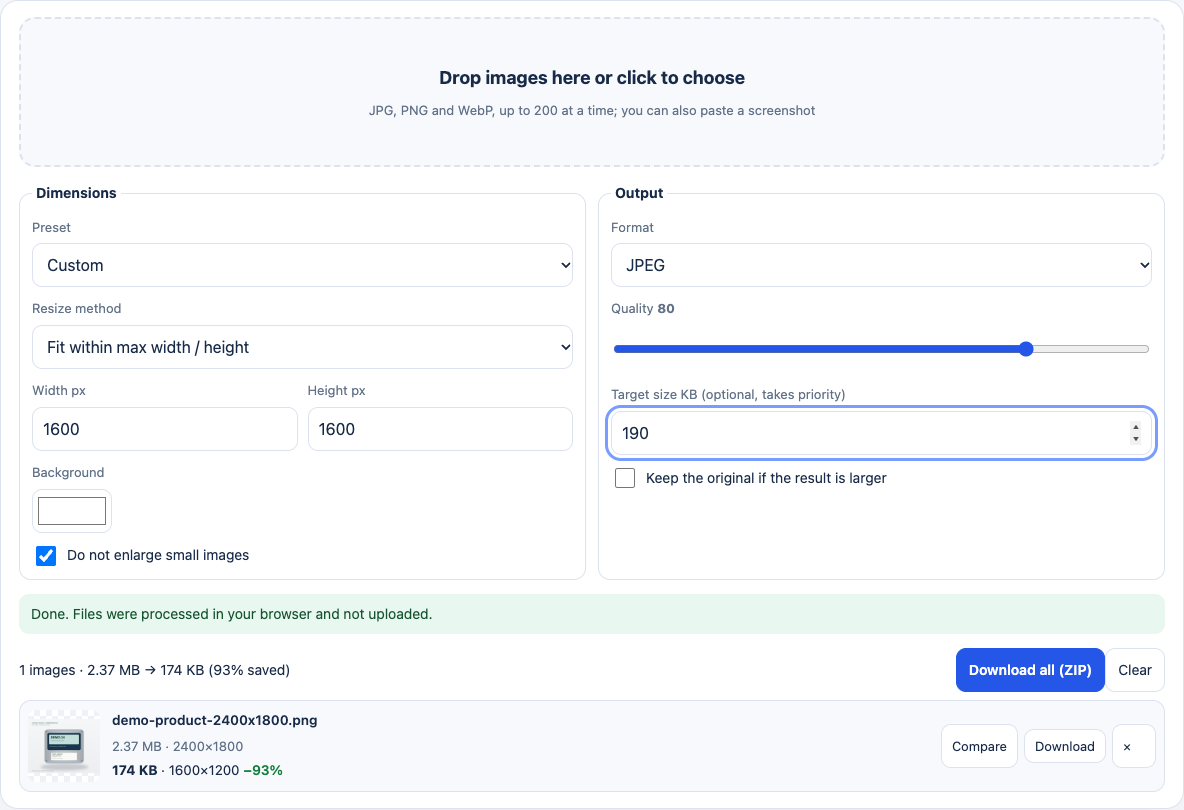
The interface rounds this result to 174KB using 1,024-byte units. The downloaded file is exactly 178,413 bytes. We checked this workflow in Chrome on 24 October 2026; other images and browser encoders can produce different results.
What JPEG, WebP and PNG produced
Each run below started again from the same original, with the output kept at 1,600 × 1,200. Repeatedly recompressing a previous JPEG would introduce another variable.
| Output | Target field | Downloaded bytes | Result for this task |
|---|---|---|---|
| JPEG | 190KB | 178,413 | Below 200,000 bytes; ready for detail inspection |
| JPEG | 200KB | 194,972 | Also below 200,000 bytes in this sample, with less margin |
| WebP | 190KB | 191,662 | Below the limit; confirm WebP is accepted |
| PNG | Not applicable | 1,687,060 | Above the limit; reconsider format or intended use |
Here the WebP output was larger than the JPEG output. Choose from the files you actually obtain rather than assuming one format always wins. These measurements describe one fictional sample, not a general compression percentage or a quality ranking.
In XunL, PNG output does not use target-size quality search. Its quality and target controls are hidden. Resizing a PNG may reduce its bytes, but that is not a promise of a 200KB result. This also matters when you leave the format as Same as original and the input is PNG.
Inspect the label at 100%
Use the before-and-after slider for an overview, then open the downloaded file at 100% scale. A small preview can hide damage that becomes visible when the buyer zooms in.
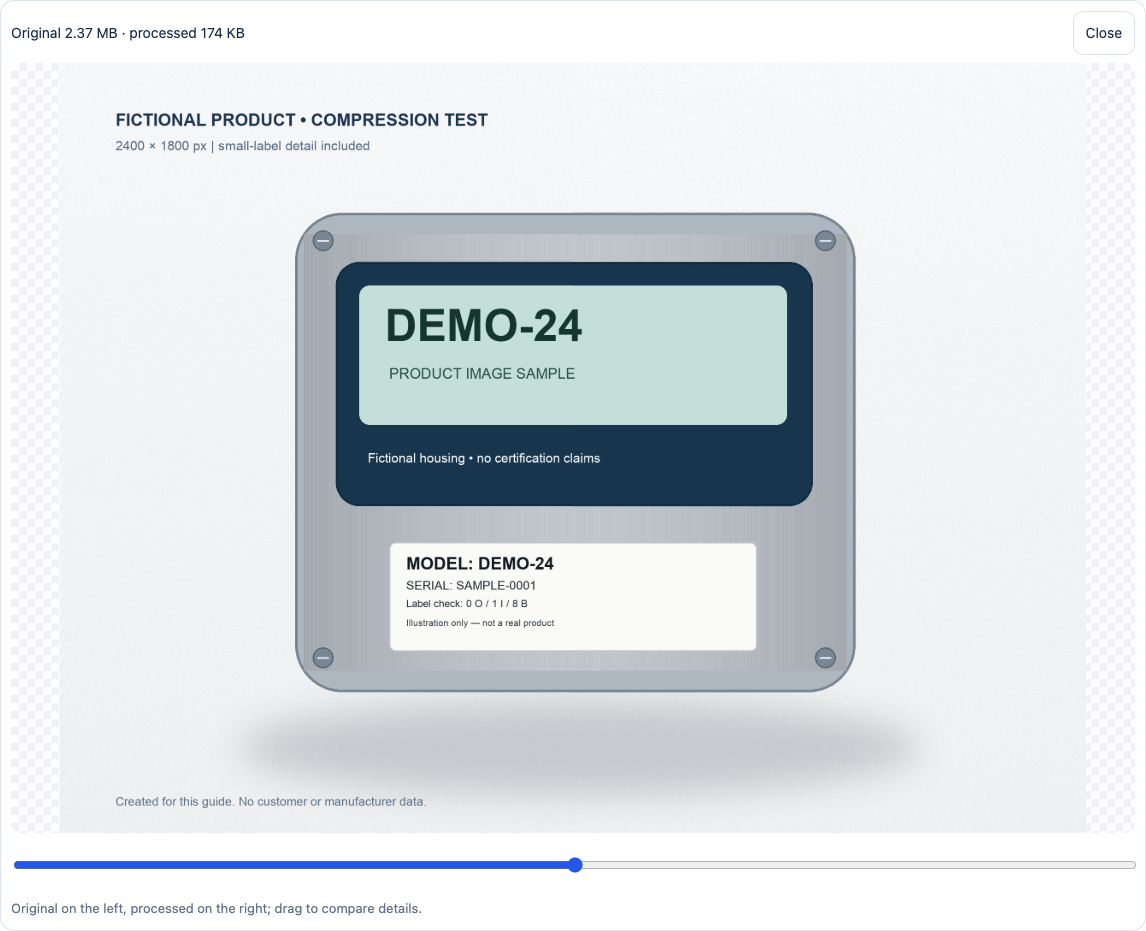
The model and serial text remained distinguishable in our downloaded JPEG. That observation applies to this sample. For your own image, inspect:
- Characters: distinguish 0 from O and 1 from I; check decimals, units and short model suffixes.
- Edges: look for blocks, halos and roughness around thin lines, threads, mesh and logos.
- Colour and background: check visible shifts in finishes and unexpected backgrounds around transparent areas.
- The real page: check the crop, thumbnail and enlarged view on the destination page, including on a phone.
If text becomes difficult to read, remove unnecessary surrounding space and give the product more of the frame, then process the original again. Try larger pixel dimensions or another accepted format if the budget permits. If the upload limit still prevents a useful label, provide a separate readable detail image in an allowed location.
When XunL fits as a TinyPNG alternative
XunL is useful for manually resizing a batch, setting a file-size budget, inspecting it and downloading the results. TinyPNG also has a free web option: its current official pricing page lists 20 images per session and 5MB per image for Web Free, with higher allowances in Web Pro and Web Ultra. Check TinyPNG's web subscription details for the current terms.
| Your job | What to evaluate |
|---|---|
| Occasional compression of a few images | Consider both free web options and inspect your own results |
| Manual batch processing with a target size | XunL offers dimension and target-KB settings, up to 200 images per batch and 50MB per image; speed depends on your device |
| Preserve a transparent background | XunL can retain PNG transparency without target-KB quality search; avoid opaque padding, and confirm destination support for transparent WebP |
| Automatic image processing on a website | Assess the specific plugin, API or CDN workflow separately; a manual web tool does not reproduce that integration |
This is a comparison of workflow fit. We have not ranked the two compression engines using a shared photograph benchmark.
Fix common problems before downloading a batch
The result still exceeds the target. A target is a search budget, not a guarantee. If the tool reports that it cannot meet the target, try smaller pixel dimensions or another accepted format, working from the original. Check the new bytes before calling the task complete.
A transparent background turned solid. JPEG does not retain transparency; the chosen background colour is used. Choose supported PNG or WebP output when transparency matters, avoid adding an opaque background, and inspect the edges.
The result is bigger than the original. An already optimised image may grow when re-encoded. Keep the original if the result is larger applies with Resize method: None (original size), the original output format, and no watermark. A resize mode that happens to leave the same pixel dimensions is not the same setting. A retained original also retains its existing metadata; do not treat it as an EXIF-cleaned copy.
A large batch is hard to inspect. Test a representative photograph, a transparent image and an image with small text first. Process similar images together, then check unusual sizes or dimensions in the downloaded ZIP. A 200-image allowance does not mean every device can comfortably process 200 large files at once.
If the image needs background work first, see the product-photo background removal guide. For edits or cropping, use the image editor and keep an editable original. Then open the image compressor and start with one representative image that includes a readable label.
Put this guide to work for your business
Create a company account to try website monitoring and the inquiry workbench. Compare Pro plans for your team’s ongoing needs.
No card required. The trial returns to Free when it ends. Paid monthly credits are not included in the trial.