Yes. XunL can handle a common task people use remove.bg for: turning product photos into transparent PNGs at their original pixel dimensions. It is useful when you want to prepare a batch manually in a browser, review the edges, and download the finished files.
The choice becomes clearer when you separate three questions: what size can you download, where does processing happen, and how will the cutouts enter your next step?
What is changing on 1 December 2026?
remove.bg’s official FAQ says its standalone website and accounts will become unavailable on 1 December 2026 at 09:00 CET. Background removal is moving to Canva; the self-service API stops taking requests from 1 December, with an alternative through Leonardo.Ai. Enterprise API contracts continue. Existing customers should review its credit, subscription and invoice-export instructions before the deadline. Official transition FAQ.
What changes when you use XunL?
remove.bg offers free previews and credit-based high-resolution downloads. Its current help page states that a high-resolution download uses one credit; a preview is limited to 0.25 megapixels. Its free account also includes a bonus credit to try a high-resolution download. Sources: remove.bg credit rules, free account and payment options.
XunL Background Remover currently provides original-size PNG downloads without an account or watermark. Its model runs in your browser, with limits of 50 images per batch, 40 MB per image and 40 megapixels per image. The first use downloads the model and runtime; your images stay on your device during processing.
| Your requirement | Useful distinction |
|---|---|
| A few quick preview cutouts | remove.bg has a free preview option |
| A folder of product photos to download at source dimensions | XunL supports local batches within the limits above |
| A transparent or plain white background | XunL offers both outputs as PNG |
| An automated website or application pipeline | Review remove.bg’s API and your existing integrations |
| Hair, glass or a complicated edge | Inspect the result and allow time for manual correction |
For automated work, review remove.bg’s API transition guidance when planning the next integration. XunL’s page is a manual browser workflow, and output quality depends on the photograph and the segmentation result.
An actual export check with one product photo
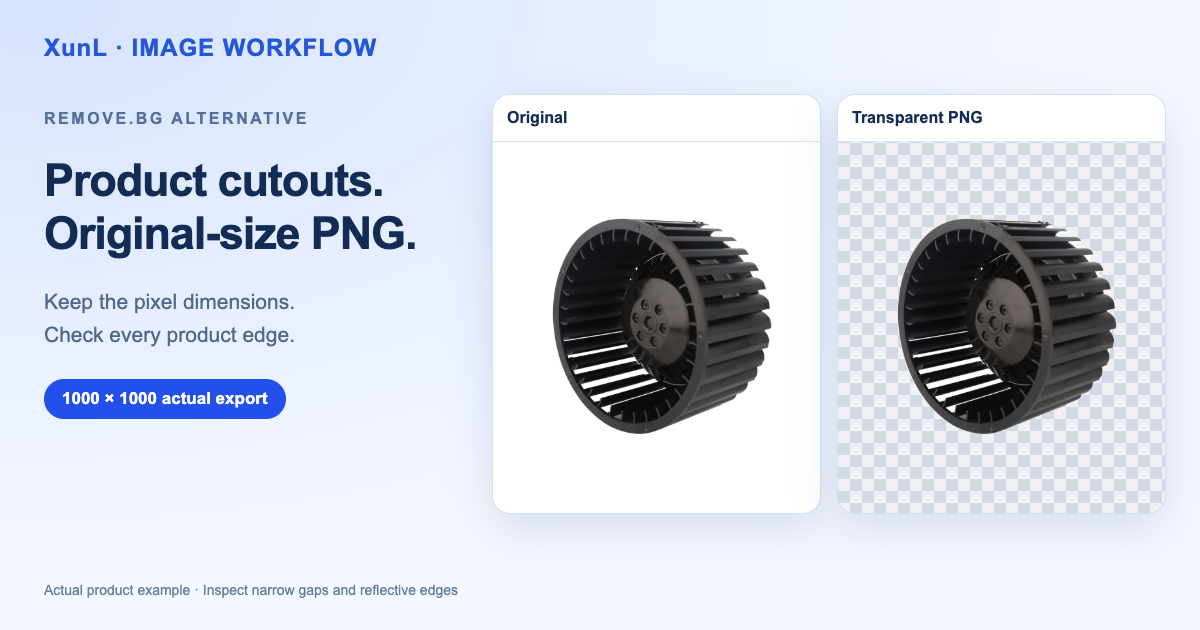
We processed an authorized product photo in XunL's public tool with Sharp edges and a Transparent background. The source was 1000 × 1000 pixels, and the exported PNG retained those dimensions and contained transparent pixels. The ZIP held one PNG, identical to the individual download. We completed this export check on both the English and Chinese pages.
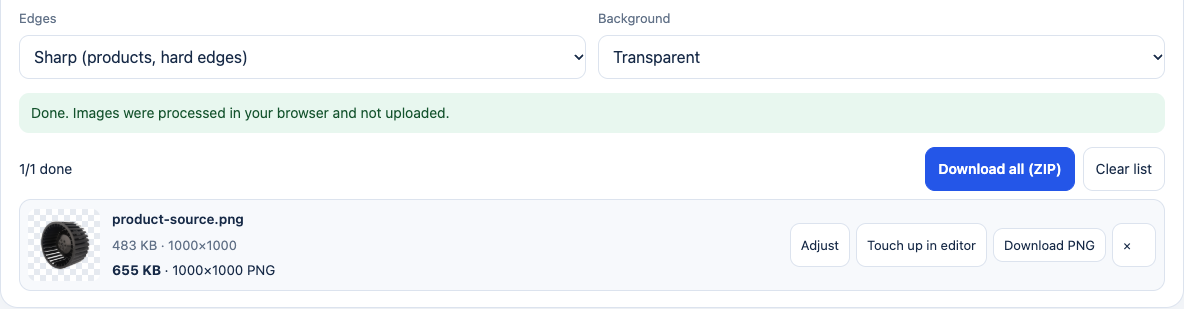
Actual tool screenshot: the canvas dimensions are preserved. File size can change with PNG encoding and the alpha channel.
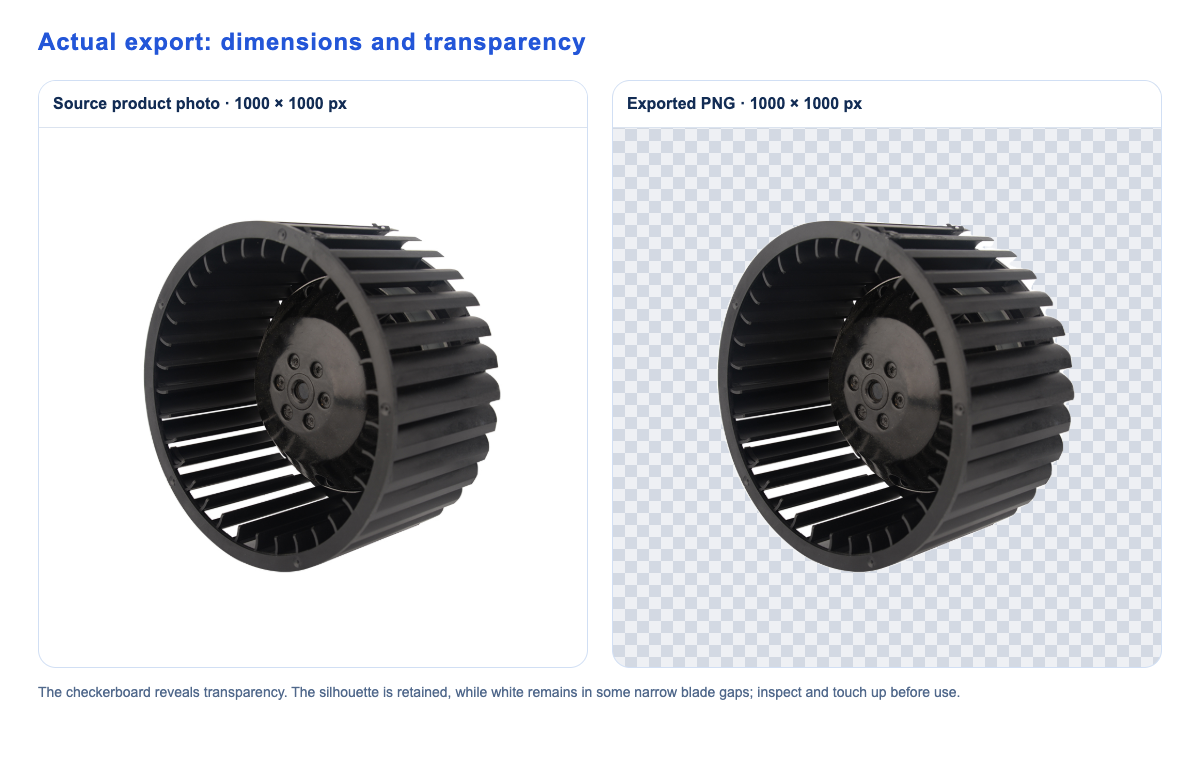
The automatic result retained this product's silhouette, but white remained in some narrow blade gaps. A separate reflective silver product also lost part of its blades on the first automatic selection. Both need closer inspection and touch-up. A successful download verifies the file, while a separate visual review must verify the product's structure.
A batch tutorial example: prepare 24 product photos
Suppose you have 24 photos of opaque products, each 1600 × 1200 pixels and about 2 MB. You need transparent images for a catalogue layout, plus white-background versions for a product page. This is a worked input example you can repeat with your own photos; it is not a measured comparison of the two tools.
At 1.92 megapixels per image, these files fit XunL’s stated limits, and 24 photos fit in one batch. Keep the originals in a separate folder before starting.
- Choose the background. Open the background remover and select transparent for cutouts that will be placed into other layouts. Choose white when you need a ready-to-use white backdrop.
- Add the images. Drag the 24 files into the page. On first use, allow the browser to download the model. A current browser with WebAssembly SIMD support is required.
- Check the selected subject. A single clear product is a good starting point. If the wrong object is retained, open its adjustment view and click the product. Shift-click to add a missed area or Alt/Option-click to remove an unwanted area.
- Inspect at 100%. Check handles, holes, thin cables and reflective edges. A cutout can look convincing as a thumbnail while losing a small but important product feature.
- Finish difficult edges. Use the image editor when a mask needs brush correction. Glass, translucent material and fine hair deserve a separate review.
- Download and verify. Download the PNGs, individually or as a ZIP. Check that all 24 products are present, the transparent versions retain transparency, and the intended 1600 × 1200 dimensions are preserved.
Original-size download preserves the canvas dimensions. The subject may occupy only part of that canvas, and the quality of its edge still depends on the mask. If you subsequently crop away empty space, the image dimensions will change.
How should you choose your next workflow?
An automated catalogue system, a Photoshop production process or a workflow shared across several systems may need an API or editor integration. Plan that transition around the official deadlines and compare integration work as well as download cost. Also compare difficult images on the files you actually sell: a translucent bottle and a solid metal bracket create very different masking problems.
For a manually reviewed batch, try a representative set first: one simple product, one with holes and one with a difficult reflective edge. Inspect the cutouts at their intended display size before committing a whole folder.
Questions before you export
Will a small photo become a larger image?
Background removal retains the original dimensions. Use a separate image upscaler if you need a larger canvas, then check logos and fine text because generated detail can differ from the original.
Can I process more than 50 images?
Work in batches of up to 50, within the per-image file and pixel limits. XunL currently states no usage-count limit for this tool. Processing time and browser memory depend on your device and image sizes.
Are the photos uploaded?
XunL’s background-removal model, image processing and PNG/ZIP export run in the browser. The page includes advertising, which does not take part in image processing. Source: XunL tool details and limits.
Can I use the cutouts commercially?
XunL allows commercial use of the outputs. Make sure you have permission to use the original photographs and review the image requirements of the marketplace or publication where they will appear.
Prepare a batch of product cutouts with XunL →
Comparison checked on 24 October 2026. Product plans and limits may change. XunL is independent of remove.bg; the name identifies the service being compared.
Put this guide to work for your business
Create a company account to try website monitoring and the inquiry workbench. Compare Pro plans for your team’s ongoing needs.
No card required. The trial returns to Free when it ends. Paid monthly credits are not included in the trial.