Use the XunL PDF toolkit to combine an existing quotation, specification sheets and supporting pages into one customer PDF. You can remove an obsolete page, put the remaining pages in reading order and download a new copy. PDF processing runs in your browser, with no account required.
For anyone looking for a Smallpdf or iLovePDF alternative for merging and reordering PDFs, this is a practical task to test. The walkthrough uses three fictional files containing six pages. It produces a five-page packet, rather than simply joining files and hoping their order is right.
Plan the reading order before merging
A useful quote pack answers the buyer's questions in sequence: what is being offered, on what terms, with which specifications, and with which supporting documents. File names alone rarely establish that order.
Our demonstration uses these files:
| Source PDF | Page labels | Intended use |
|---|---|---|
| Quotation | Q1, Q2 | Keep both at the beginning |
| Supporting pages | D1, D2 | Remove obsolete draft D1; put D2 last |
| Specifications | S1, S2 | Keep both immediately after the quote |
Loading the files in that sequence creates Q1, Q2, D1, D2, S1, S2. The required final sequence is Q1, Q2, S1, S2, D2.
Everything in the example is fictional: supplier, A-100 product, price, dimensions and terms. D2 is a document checklist prominently marked “NOT A CERTIFICATE.” A merge tool does not establish whether a real certificate covers your product; confirm its issuer, scope, model and validity separately.
Merge the files, remove the draft and reorder pages
Open XunL PDF tools and choose PDF editor and signature. This workflow uses its page controls; adding a signature or text overlay is optional.
- Choose the quotation PDF. Check that Q1 and Q2 appear as thumbnails. Click a thumbnail to preview its content.
- Append the other PDFs. Use Merge another PDF, first for the supporting file and then for the specifications. Choose one PDF at a time. There should now be six pages.
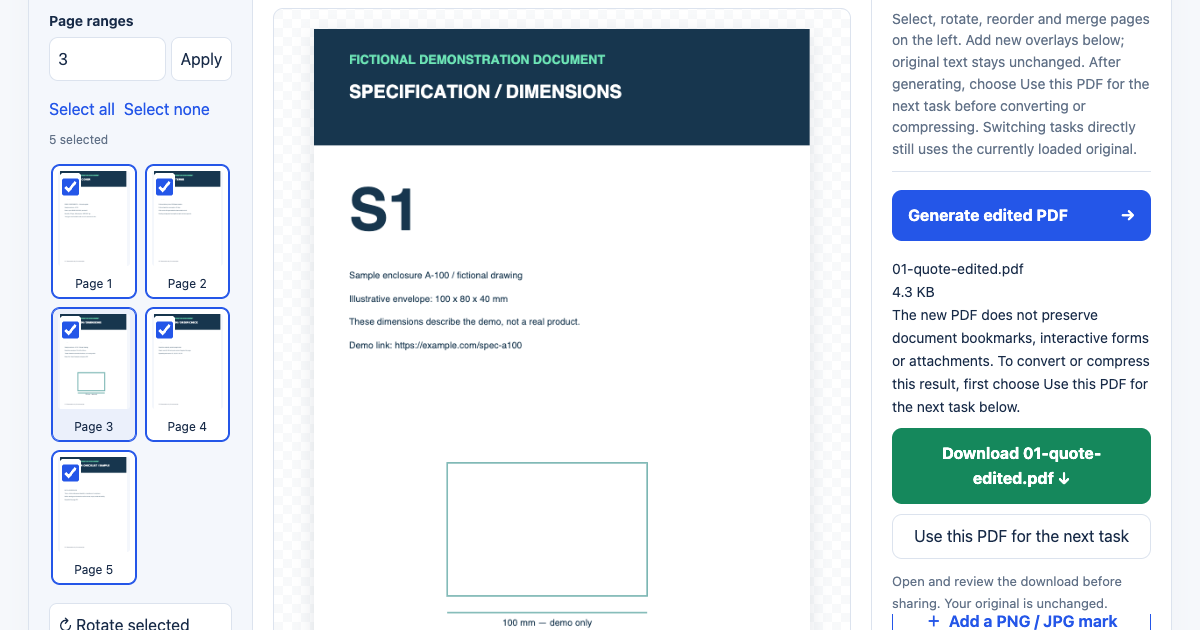
- Remove the obsolete page. Enter
3in Page ranges and click Apply. Confirm that the selected page is D1, then choose Delete selected. Five pages remain; D2 is now page 3. - Move D2 to the end. Select the current page 3, then click Move selected down twice. The sequence becomes Q1, Q2, S1, S2, D2.
- Select all five pages. Check that the interface says 5 selected, then choose Generate edited PDF. Editor export uses the selected pages, so the single-page selection used for moving should not be left in place.
- Download and open the result. Review it in a PDF reader, then give the copy a useful file name such as
A-100-quote-rev-B.pdf.
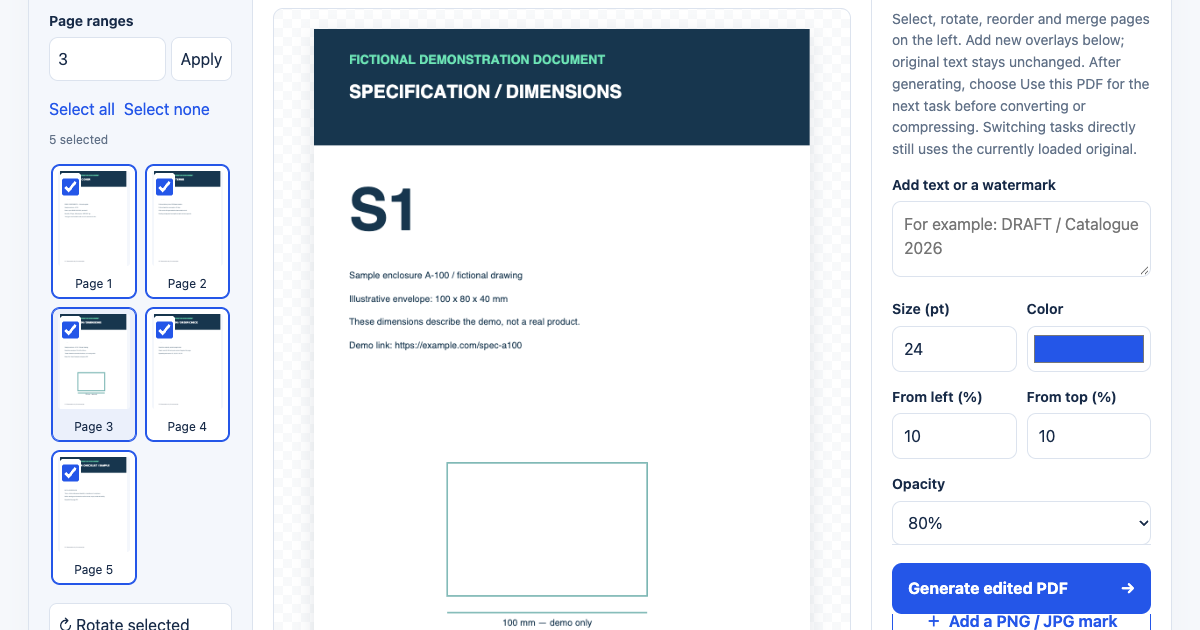
The screenshot still has 3 in the range field from the previous operation, while the checkboxes and 5 selected show the current selection. The field changes selection when you click Apply. Check the selected thumbnails before exporting.
For a sideways page, select that page and use Rotate selected. Complete rotation and ordering before adding overlays. Page numbers change as you delete and move pages, so use the actual content to identify a page rather than relying on its old position.
What the downloaded PDF actually contained
We performed the same workflow in the Chinese and English interfaces on October 24, 2026. Both exports contained five pages, in the requested order Q1, Q2, S1, S2, D2, and each file was 4,359 bytes. These are small text-based demonstration documents, so that size is not a forecast for an image-heavy catalogue.
Text extraction found readable text on every exported page, and the obsolete D1 page was absent. One demonstration hyperlink, pointing to an example.com address on S1, was also retained. That is a verified result for this particular link, rather than a promise that every link or PDF feature will survive every input file.
This editor rebuilds the packet without document-level bookmarks, interactive forms or attachments. Check the tool's current task notes before using a form, a navigation-heavy manual or a formally signed document. Preserve the original files.
How XunL fits alongside Smallpdf and iLovePDF
Both competing services offer free PDF merging. Smallpdf's Free plan limits downloads, while Pro expands access; iLovePDF's Basic plan has limited processing, with more capabilities in Premium. Check their current Smallpdf merge page, Smallpdf plans and iLovePDF plans. These details were checked on October 24, 2026.
| What you need | A sensible fit |
|---|---|
| Merge existing PDFs, remove a page and reorder a one-off customer packet | XunL handles these page operations locally in the browser |
| Occasional merging within an existing Smallpdf or iLovePDF workflow | Their free merging options may already suit the job |
| A wider team workflow, cross-device access or subscription features | Compare the provider's current plan against the complete workflow |
| Original paragraph editing, interactive forms or formal signing | Choose a tool that specifically supports those requirements |
XunL currently accepts each PDF up to 40 MB and 60 pages. Loaded documents for a merge are limited to 60 pages and 80 MB combined. Available browser memory also matters. Use copies and a manageable packet size when testing your files.
Check the packet before sending it
A successful download is the beginning of review. First confirm the page count and sequence: this example should have five pages, ending with D2. Then match the quote revision, currency, quantity, model and specifications across the packet. Inspect small type, dimension labels, tables and page orientation in the downloaded file.
Test links and any interactive content you expect the recipient to use. Finally, confirm that excluded material is absent. Deleting an entire page removes it from the new packet; covering text with an overlay is not secure redaction. XunL's added text sits above existing content, and a signature image is not a certificate-based digital signature.
To continue with page numbering or compression, click Use this PDF for the next task, or download and reload the edited file. Simply switching tasks still uses the currently loaded source. If the reviewed packet is too large for an attachment, follow the catalogue PDF compression guide and compare readability, selectable text and links before choosing a smaller version.
Frequently asked questions
Why did my merged PDF contain only one page?
You may have left just the page used for moving selected. Choose Select all before generating, and verify the selected count. This example should show five selected pages after deleting D1.
Can I replace a price inside the original quotation?
Page organization does not edit the original paragraph. Adding a new amount above an old one does not remove the old content. Update the source quotation and export a fresh PDF before assembling the customer packet.
Does merging PDFs reduce their file size?
Not necessarily. Merging organizes content; output size depends on the inputs and how they are rebuilt. Establish the correct contents first, then decide whether compression is needed.
Does local processing mean the webpage makes no network requests?
No. The page and PDF engine load over the network, and the website may make analytics or advertising requests. Local processing means the selected PDFs are processed in the browser rather than sent to a PDF conversion server.
Start with copies of a few documents and build your customer quote pack in XunL. Use the final page order as your acceptance check.
Put this guide to work for your business
Create a company account to try website monitoring and the inquiry workbench. Compare Pro plans for your team’s ongoing needs.
No card required. The trial returns to Free when it ends. Paid monthly credits are not included in the trial.