A plywood cutting plan needs more than a rectangle diagram. The parts must fit after allowing for the saw kerf and edge trim, visible grain must run in the right direction, and the shop needs a clear parts list.
The XunL cut list optimizer handles rectangular sheet layouts in your browser. This walkthrough uses a 22-part cabinet example to show how to enter a cutting list, check a proposed layout and prepare a PDF for the shop.
Choose sheet cutting or linear cutting
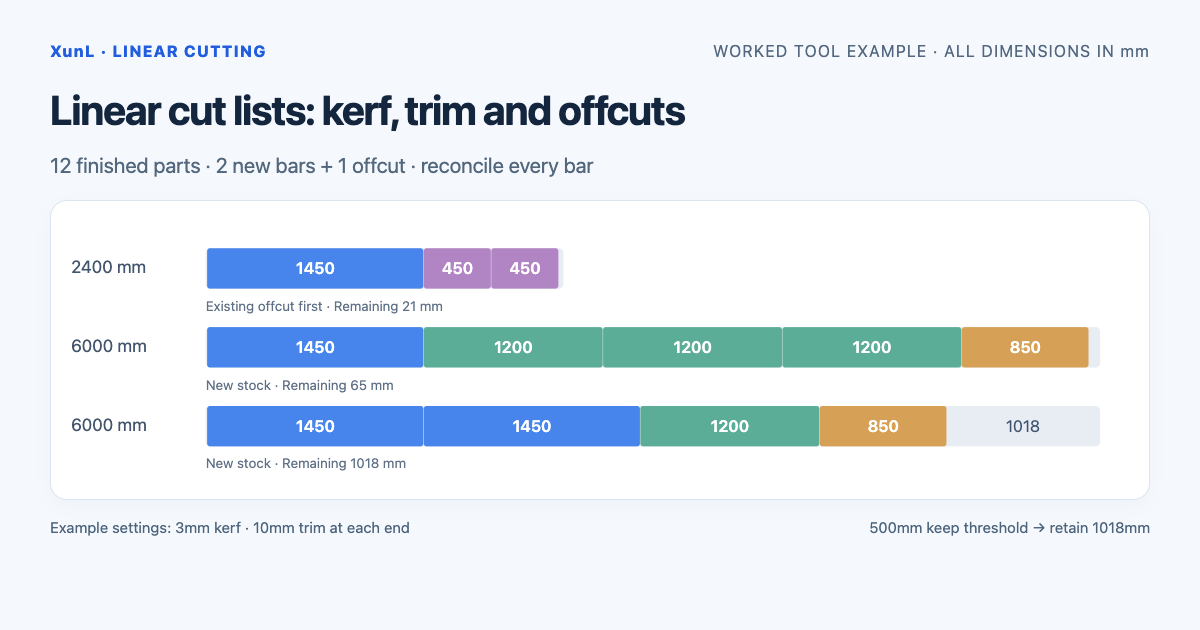
Use the sheet optimizer for plywood, MDF, acrylic and other rectangular panels where both length and width matter. For lumber, tube or extrusion cut to length, use the linear stock cutting optimizer.
Both sheet modes in this tutorial place rectangular parts. The CNC/laser option allows freer rectangle placement; it does not provide irregular contour nesting or machine G-code.
1. Enter one material and thickness at a time
Keep different thicknesses, finishes and materials in separate jobs. A layout does not establish whether two panels are interchangeable in production.
For this example, choose inches and USD, then enter 96 × 48 inch sheets of 3/4 inch plywood at an illustrative price of $62 per sheet. Start with the example or clear old inputs, and do not add other stock or saved offcuts. Leave the available sheet quantity blank for an unrestricted supply, then enter these parts:
| Part | Length, in | Width, in | Quantity | Grain | Banding |
|---|---|---|---|---|---|
| Side | 30 | 23 1/4 | 4 | Along length | One long edge, A |
| Top/bottom | 34 1/2 | 23 1/4 | 4 | Any direction | One long edge, A |
| Shelf | 33 | 22 | 4 | Any direction | One long edge, A |
| Door | 29 3/4 | 17 1/4 | 4 | Along length | All four edges, B |
| Drawer front | 17 1/4 | 6 | 6 | Any direction | All four edges, B |
You can enter the rows directly or import an Excel or CSV cutting list. Exporting a starter file and following its headers is a practical way to avoid putting quantity or grain data into the wrong column. After importing, check the units and the total of 22 parts.
2. Allow for kerf, trim and the cutting method
Select panel-saw mode, a 1/8 inch kerf and 1/4 inch edge trim. Allow rotation for parts without a grain restriction. These are example settings: measure the kerf from your own blade and a test cut before using a plan in production.
Panel-saw mode uses edge-to-edge, or guillotine, cuts and can show their sequence. A free nesting arrangement may not be suitable for your saw. Selecting a CNC/laser layout does not turn the plan into a toolpath or account for every machining constraint.
3. Set grain and edge banding before optimizing
The sheet grain runs along its length by default. The example keeps the side and door grain along each part's length. Other parts may rotate. If a real panel has a directional finish, preserve that requirement even when rotation would improve the layout.
Create band A as 1/32 inch white PVC, with a 600 ft roll and an illustrative price of $0.12/ft. Create band B as 3/32 inch oak veneer, with a 300 ft roll and an illustrative price of $0.35/ft. Add 1 inch of overhang per banded edge.
L1/L2 identify the long edges; W1/W2 identify the short edges. Apply A to L1 only for the first three part types, and B to all four edges for doors and drawer fronts. Leave “Deduct band thickness” off for this walkthrough. If your list contains finished sizes that include banding, enable deduction only after confirming that the dimensions have not already been reduced in your spreadsheet.
4. Check the proposed plan, not just the percentage
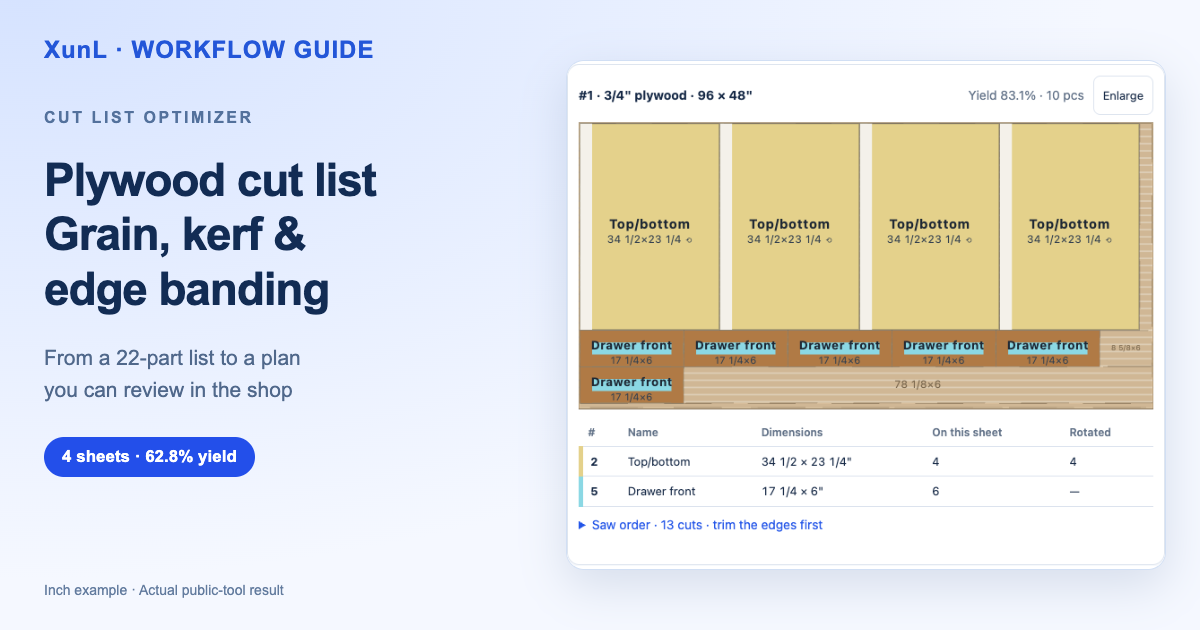
With these settings, the example produces a plan using four sheets and places all 22 parts. The total part area is 11,576.25 square inches; the four full sheets total 18,432 square inches. The resulting area yield is about 62.81%, and the entered sheet price gives a plywood cost of $248.
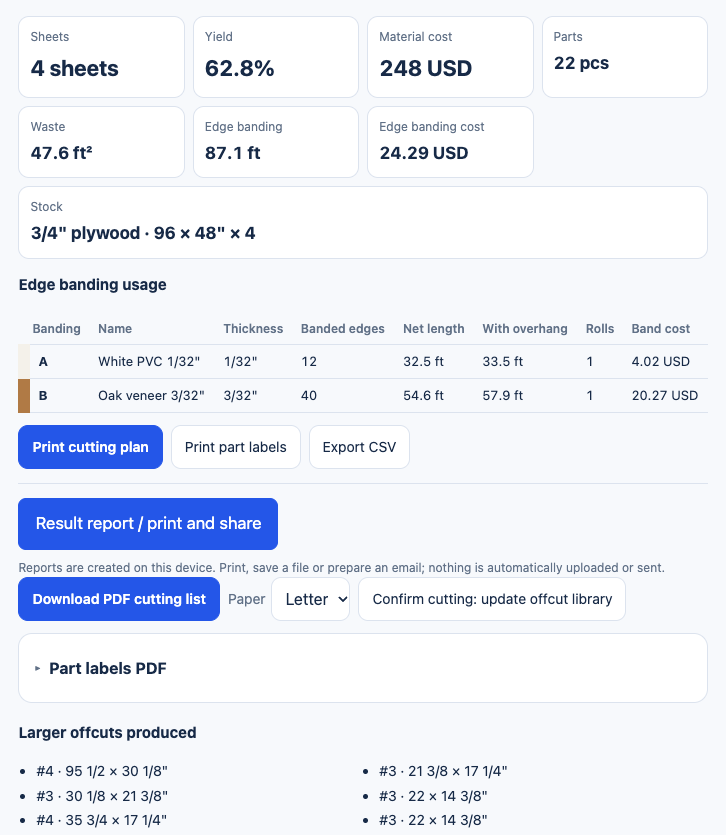
Actual public-tool result: 22 parts on four sheets; the interface rounds overall yield to 62.8%.
This is a calculated plan, not a claim that four sheets is the mathematical optimum. An area-only lower bound is three sheets, but area alone does not establish that all the parts fit with grain, trim and cutting constraints. Review the layout and compare valid settings before purchasing material.
The example uses 32.5 ft of band A before overhang, or 33.5 ft with overhang. Band B uses about 54.58 ft before overhang, or 57.92 ft with overhang. At the illustrative prices above, consumed banding costs about $24.29. Buying a complete roll may require a different cash outlay; glue, labor and machining costs are separate.
Yield is the placed part area divided by the full sheets used. The remaining area includes trim, kerf and offcuts, so it is not all reusable material. Check the dimensions of each retained offcut before adding it to stock.
5. Export the cutting list and part labels
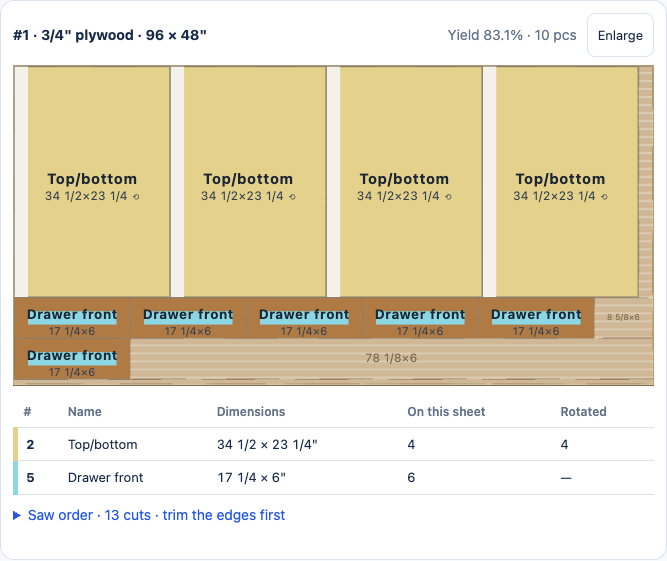
The percentage in this layout belongs to the first sheet. Use the result summary for the overall yield. Saw markers are switched off in this screenshot to keep the part dimensions readable.
The PDF cutting list includes a summary and layout pages. Check the part quantities and sizes, then review the numbered saw sequence in panel-saw mode. Keep the PDF with the job rather than relying on a cropped screenshot.
For identification at the shop, export part labels with names, sizes, sheet numbers and edge-banding diagrams. Code 128 barcodes and QR codes are available. Test one page on plain paper at actual size, check alignment, and then print on the intended label stock.
Once you have committed to the physical cuts, use the offcut-library update action. Updating inventory during an exploratory calculation can leave the browser's records out of step with the material on the rack.
6. Save the inputs as well as the PDF
Saved projects and offcuts belong to the current browser. Export important lists so that changing computers or clearing browser data does not become your only recovery plan.
A share link contains the encoded inputs, including any names, prices and notes you included. Anyone who obtains it can inspect those inputs. Review the contents before sharing externally. Opening the link recalculates the job; it is not an immutable snapshot of the original result.
Common questions
Is this a free cut list optimizer?
At the time of this walkthrough, XunL's sheet optimizer requires no sign-up and accepts up to 3,000 parts per run. Calculation time depends on the job and the device running the browser.
Can it replace a plywood area calculator?
It can calculate part area and create a placement plan, which helps when area alone is insufficient. The resulting layout still needs shop review for actual sheet condition, grain and cutting constraints.
Can I use it for sheet metal or acrylic?
Yes, for rectangular part placement. Enter the actual cutting allowance and review the process separately. The layout does not evaluate heat distortion, workholding, material safety or machine-specific settings.
Open the plywood cut list optimizer, check a small group of parts against your measurements, and then build the complete job.
Put this guide to work for your business
Create a company account to try website monitoring and the inquiry workbench. Compare Pro plans for your team’s ongoing needs.
No card required. The trial returns to Free when it ends. Paid monthly credits are not included in the trial.