Choose free cut list software by testing the job you need to deliver: a correct parts list, a layout your equipment can cut, and files the shop can keep. For a spreadsheet-to-layout workflow with PDF cutting lists and part labels, the XunL sheet optimizer is one option to try. Cloud project management or a Windows estimating workflow can make optiCutter or CutList Plus worth evaluating instead.
This guide compares selection criteria for rectangular sheet projects. It does not rank the three products by yield, speed or algorithm quality. Features and plan limits were checked on October 24, 2026; review the vendors' current terms before purchasing or migrating.
Start with 2D sheets or 1D lengths
Plywood panels need a two-dimensional layout: both length and width constrain placement. Tube, extrusion and lumber cut only to length need a linear optimizer. A search for “cut list optimizer” can lead to either workflow.
XunL's sheet tool accepts up to 3,000 physical pieces per run. Its separate linear stock cutting tool accepts up to 20,000; that is a different tool and limit. Add contour nesting, angled joints, drilling and machine programs to your requirements separately if the job needs them.
Compare the counting rules before the headline limits
| Product | Delivery model | Quantity rule checked for this guide |
|---|---|---|
| XunL sheet optimizer | Free browser-local calculation; no sign-up | Up to 3,000 physical pieces per run |
| optiCutter | Cloud service with Free and paid subscription plans | Free 2D: 5 stock sizes, 20 required panel sizes, 500 panels total |
| CutList Plus | Paid Windows software with a one-time license | Silver: 50 list rows, up to 1,000 copies per row; Gold/Platinum: unlimited rows, up to 5,000 copies per row |
The optiCutter limit of 20 means different required sizes, not 20 physical pieces. CutList Plus defines a part as a list row and counts copies separately; Silver is a paid edition. See optiCutter's plans and CutList Plus's quantity definitions.
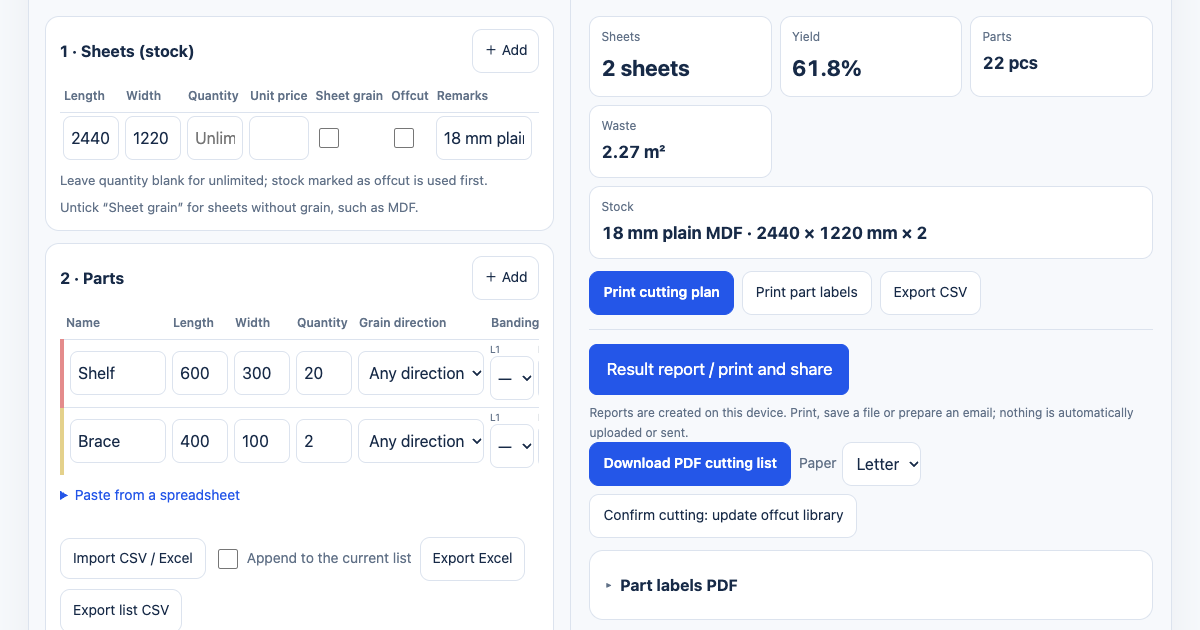
For example, twenty 600 × 300 mm shelves and two 400 × 100 mm braces make two sizes, two rows and 22 physical pieces. Count all three for your own order. A small job can fit more than one product's limits, so a larger headline allowance alone may not justify switching.
Run a small acceptance check
A short list that you can verify by hand is more useful than a feature badge. Use this example to test units, quantities, rotation and exported files. It is not a benchmark between products.
| Part | Length × width, mm | Quantity |
|---|---|---|
| Shelf | 600 × 300 | 20 |
| Brace | 400 × 100 | 2 |
Use 2440 × 1220 mm plain MDF of one thickness, with unrestricted stock quantity, no prices and no saved offcuts. Explicitly select millimetres. Set a 4 mm kerf, 10 mm trim on each edge, guillotine/panel-saw mode, rotation allowed, no banding and a 150 mm minimum retained offcut width.
The live XunL check for this guide placed all 22 pieces on two sheets and displayed 61.8% overall yield. You can check that figure independently: the parts total 3.68 m² and two full sheets total 5.9536 m², giving about 61.81%. This is a calculated area ratio, not a saving established against another product. The remaining area includes kerf and trim.
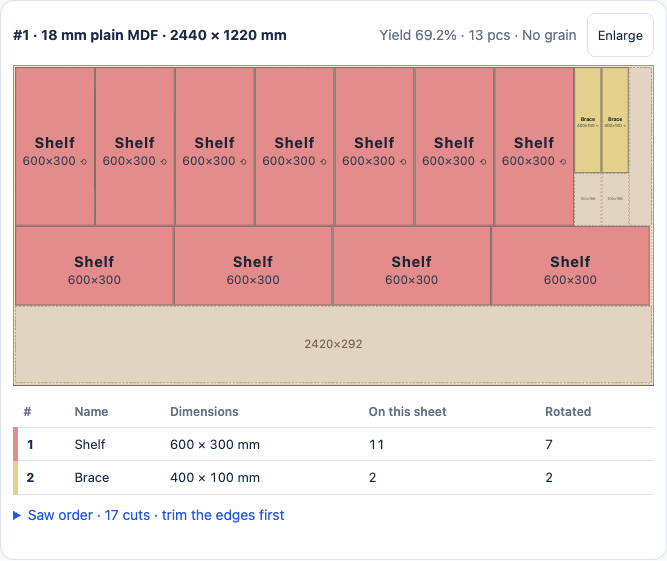
This is sheet one of the 22-piece acceptance job. It contains 13 pieces and shows a sheet yield of 69.2%; the complete two-sheet job has 61.8% overall yield. Saw-order markers are switched off in the screenshot to keep the dimensions readable.
When trying any product, check the following:
- Import preserves two rows and 22 pieces. Millimetres stay millimetres, and dimensions have not shifted into the wrong columns.
- Unrestricted parts can rotate. Add a grain-locked part to a further test if your real material has a directional finish.
- Kerf, trim and offcut settings are reflected in the plan, and an oversized part receives a clear warning.
- Downloaded PDFs agree with the parts list. Reopen the exported list and check names, sizes and quantities.
- If labels drive shop identification, print a sample page and check its content and alignment.
For this guide, both the Chinese and English XunL pages completed the calculation and downloaded PDF, Excel and CSV files. The same list was not run in optiCutter or CutList Plus, so this test supports no claim that XunL is faster or uses fewer sheets.
When XunL can fit the workflow
Start with XunL if your order already lives in Excel or CSV and your deliverables are rectangular layouts, PDF cutting lists and part labels. It supports multiple stock sizes, offcuts first, grain direction, per-edge banding and barcode or QR labels. Calculation and file generation take place in the current browser, which suits a workflow that keeps production dimensions on the device.
You still need to supply the manufacturing conditions. Separate material, thickness and finish groups. Distinguish finished dimensions from cutting dimensions so banding is not deducted twice. The plywood cutting-list tutorial covers the grain, banding and PDF workflow in detail.
Panel-saw mode uses edge-to-edge guillotine cuts. Free-layout mode still places rectangles; it does not import irregular CAD contours or generate CNC G-code. It also does not validate workholding, toolpaths, heat distortion or machine safety settings. A rectangle plan can help estimate sheet metal or acrylic, while the actual cutting process needs its own review.
When to evaluate the other products further
If online projects or system integration matter, inspect optiCutter's cloud workflow, history and API plans, then test the file exchange your business needs. Its public sheet tool includes grain, edge-banding and trim controls, so those are requirements to compare rather than features to assume are missing. See the optiCutter sheet calculator.
For a Windows shop managing materials, combined projects or customer estimates, check the relevant CutList Plus edition. Gold lists banding, pricing and shared-material capabilities; Platinum adds advanced imports and DXF diagram export. A DXF still needs the appropriate CAM process before it becomes a verified machine program. See the official edition comparison.
Test recovery before changing computers
XunL projects and offcuts are saved in the current browser. Saving a project does not synchronize it to another computer. Keep an importable parts list and the reviewed PDF; do not assume Excel or CSV contains every project setting or the offcut library. Recheck units, process settings and stock when rebuilding the job on another device.
An input share link encodes names, quantities, prices and notes in the URL. Anyone holding it can read those inputs, and opening it recalculates the job. Use a reviewed PDF when the shop needs a fixed record of what was approved.
Open the free sheet cut list optimizer with a representative small list, verify the cutting method and exported deliverables, and then decide whether to move the rest of your workflow.
Put this guide to work for your business
Create a company account to try website monitoring and the inquiry workbench. Compare Pro plans for your team’s ongoing needs.
No card required. The trial returns to Free when it ends. Paid monthly credits are not included in the trial.