You can change a printed QR code’s destination when it uses a dynamic link you control. In XunL’s dynamic QR code generator, sign in and edit the destination under My codes. The printed pattern stays the same; subsequent scans use the updated redirect.
Start by reading the URL encoded in the existing code. A QR image cannot gain an editable destination simply by being uploaded to another generator. If it contains a URL on your own website, you may be able to update that page or arrange a redirect on your server. If it contains a different provider’s short link, that provider still controls the redirect.
Identify the printed link before changing anything
| What the code contains | Practical next step | What you need |
|---|---|---|
| A dynamic short link in your account | Edit its destination in the original service | Access to the owning account and an active code |
| A fixed URL on your website | Update that page or configure a website redirect | Control of the domain and page |
| Another provider’s short link | Manage it with that provider | Access to the original account |
| A fixed URL owned by someone else | Ask the owner to change it, or plan replacement labels | Cooperation from the URL owner or a reprint |
The pattern holds a stable entry point. A dynamic service changes the address behind that entry point. The service and destination page must both remain available.
Prepare a catalogue label before printing
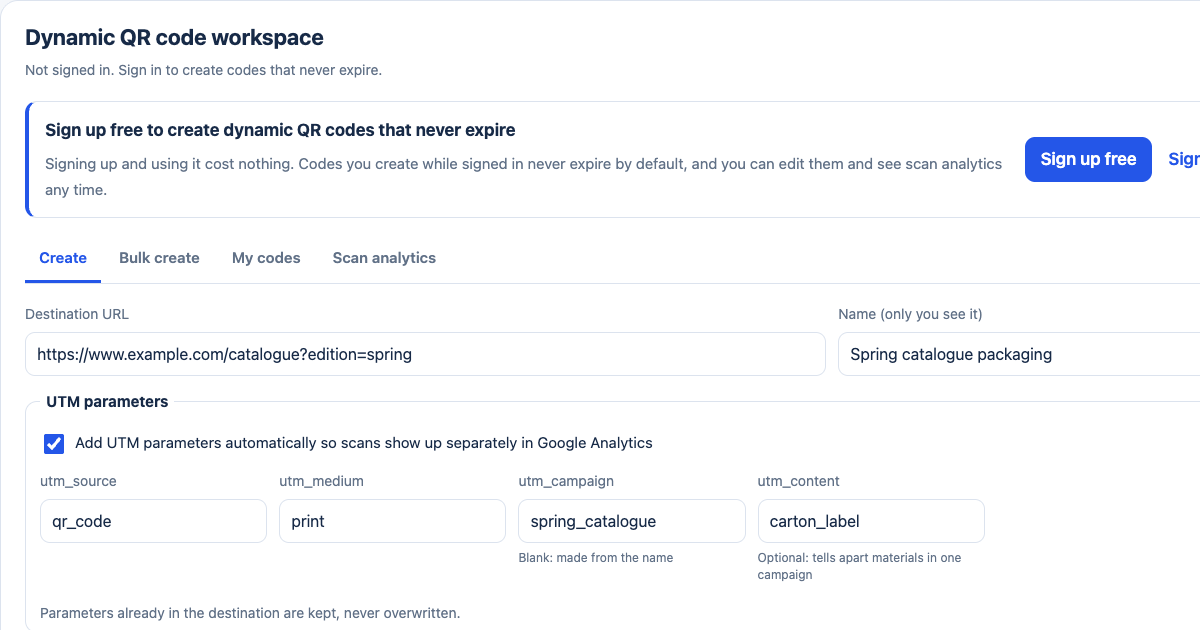
Use this example to check the form, replacing the illustrative domain with a page you own:
- Destination:
https://www.example.com/catalogue?edition=spring - Name: Spring catalogue packaging
- UTM source:
qr_code - UTM medium:
print - UTM campaign:
spring_catalogue - UTM content:
carton_label
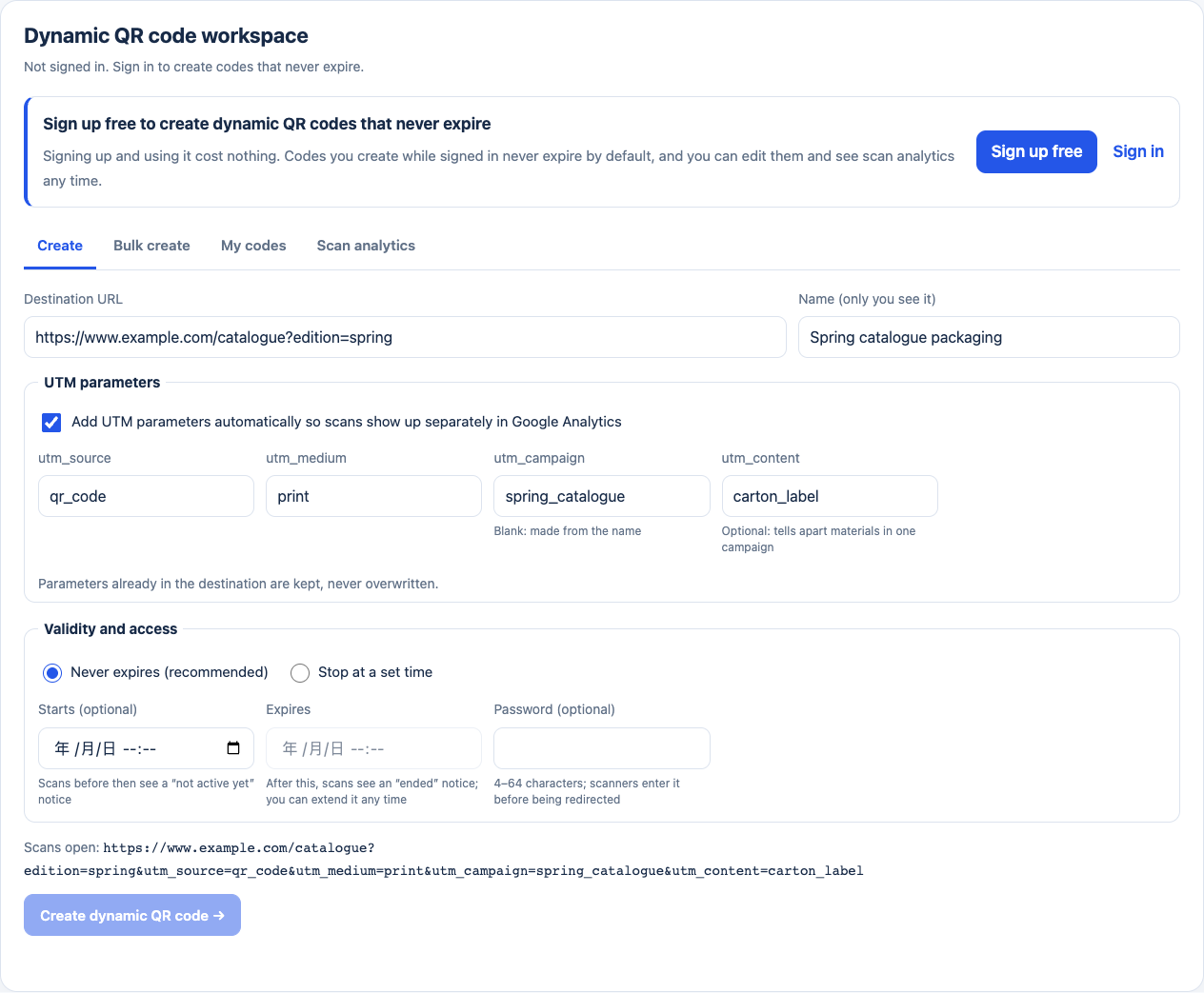
This is the current public form filled in before creation. No live code has been created in this illustration. Sign in to your own account before making a code for long-lived print materials.
The preview preserves edition=spring and adds the tracking parameters. Open the destination on a phone first, then check the complete preview for duplicated values or private information. UTM tags support attribution on the destination website; they do not install analytics or guarantee that every scan appears as a recorded website visit.
Create the code, download PNG or SVG, and keep the file with its name, destination and responsible account. Give the SVG to your designer if a vector asset is useful. Test the final printed proof rather than approving only the screen preview.
Update the destination while keeping the original label
- Sign in to the account that created the code. Under My codes, find the correct packaging label.
- Choose Edit and replace the destination. For example, change
edition=springtoedition=summer. - Review the whole URL, including any UTM parameters. The edit field holds the complete stored destination: preserve or replace the tags you still need rather than expecting old tags to be appended automatically.
- Check the code’s status, start and end times, and any password. Save the change.
- Scan the original printed code. Confirm that it opens the new catalogue, carries the intended parameters and has working download links.
- Repeat in a fresh browser session or on a second phone. If an old page appears, distinguish an old browser tab or destination-page cache from the redirect itself before replacing the code.
Creating another dynamic code gives you another entry point. It does not update the pattern already printed on packaging. Edit the existing code when the destination is the only thing changing.
Free-account limits and the meaning of “no expiry”
As checked on 24 October 2026, XunL’s published limits allow a free account to create 200 codes per month with 1,000 active at once. Editing, pausing and resuming, analytics, CSV export, bulk creation, scheduling and passwords are included within those limits. Higher quantities require an appropriate upgrade; custom short-link suffixes depend on your current plan permissions.
Codes created while signed in have no expiry date by default. A chosen end date, a paused or deleted code, or an abuse block can stop access. The redirect still depends on XunL’s service. A default without an end date is not an offline or unconditional lifetime guarantee. Temporary links made without signing in end after seven days and are unsuitable for long-lived packaging.
A CSV may contain up to 1,000 rows, processed in batches of 100. Those batch sizes do not bypass the account’s monthly creation allowance.
A QR Code Generator PRO alternative for URL redirects
XunL covers the URL-code task described here: an editable destination, print use and scan reports. Select a service by the quantities, content types, account ownership and integrations your project needs.
QR Code Generator’s official pricing page lists Starter, Advanced and Professional plans, a 14-day trial, and plan-specific dynamic-code, bulk, user and API allowances. It also supports several content types. This guide does not establish equivalence for all of those types, team administration or API workflows. A printed code using its domain still has to be managed in that service; creating an XunL account cannot transfer ownership of the encoded link.
Read scan reports without treating them as a headcount
Scan counts in the analytics report measure redirects that qualify under that report’s counting rules. Unique visitors are deduplicated using the network, browser and individual code, so they are not a count of people. One person can use several browsers; several people can share a network. Location is estimated from an IP database and may be inaccurate at city level. Camera scans often have no referring website and appear as direct traffic.
XunL provides date and hourly views, device and location breakdowns, source information and CSV exports. Its published scan-record retention period is 400 days, so export reports you need to retain. The QR image is generated in the browser; link creation, destination edits and scan reporting use the server-side short-link service.
Run two checks: before printing and after editing
Print a proof at the intended size, on the actual material where possible. Test with two or three phones under realistic lighting and scanning distance. Keep contrast and the quiet border, and avoid covering too many modules with a logo. A single size recommendation cannot guarantee readability for every design and distance.
For fixed SKU URLs without service-based reporting, consider the bulk static QR code generator. For packaging that may need a new catalogue later, open the dynamic QR tool, sign in, create one code and test a printed proof before producing the full batch.
Put this guide to work for your business
Create a company account to try website monitoring and the inquiry workbench. Compare Pro plans for your team’s ongoing needs.
No card required. The trial returns to Free when it ends. Paid monthly credits are not included in the trial.