What each record does
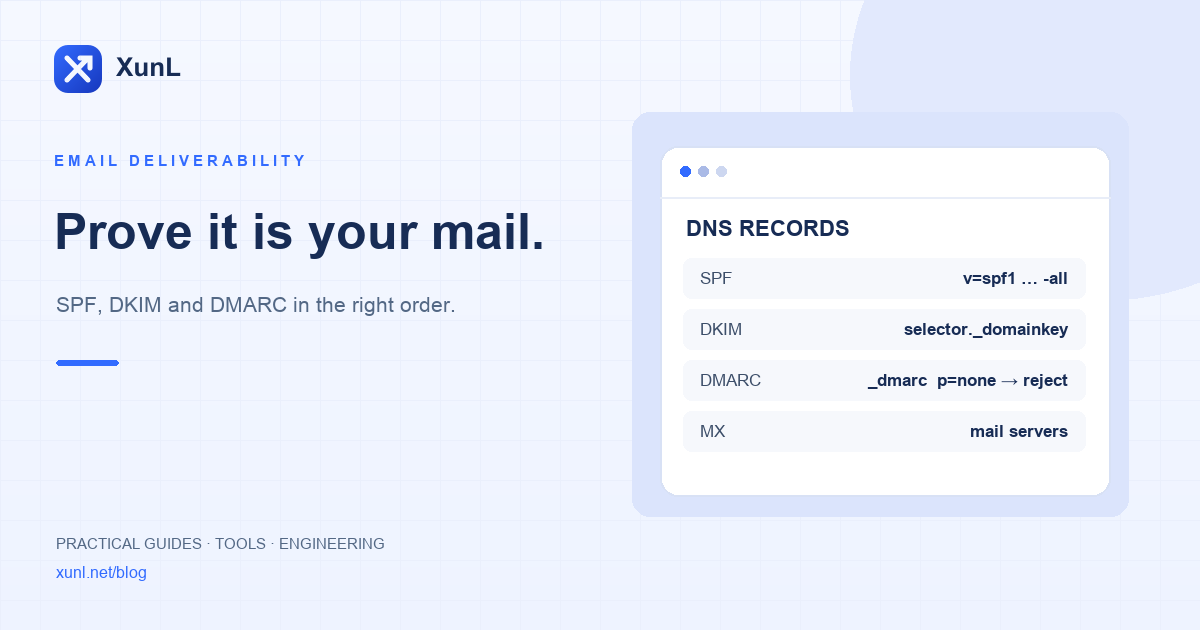
| Record | Where it lives | What it does |
|---|---|---|
| SPF | TXT record at the domain root, starting v=spf1 | Lists the servers allowed to send mail for the domain |
| DKIM | TXT record at selector._domainkey.yourdomain | Publishes the public key that verifies each message's signature |
| DMARC | TXT record at _dmarc.yourdomain | Tells receivers what to do when SPF/DKIM fail, and sends you reports |
Together they let a receiving server confirm that a message really comes from your company. Start with the email health check: enter your domain to see MX, SPF, DKIM, DMARC and blocklist status in one report, then fix issues in this order.
Step 1: MX
MX records decide where mail sent to you is delivered. After switching providers, leftover MX records can silently lose part of your inbound mail. Use the DNS lookup with type MX to see what is live.
Step 2: SPF
- Publish exactly one
v=spf1record. Multiple SPF records produce a permerror, which receivers treat as a failure. Merge every sending service into one record. - Stay within 10 DNS lookups. RFC 7208 limits
include,a,mx,ptr,existsandredirect, nested ones included, to 10 per evaluation. CRMs, marketing platforms and your mailbox provider each add includes, so this limit is easy to hit. - End with
~all(softfail) while you verify your senders, then move to-all.
Step 3: DKIM
Your mail provider generates the DKIM key. Find the DKIM or domain signing setting in its admin console, add the selector and public key it shows to DNS, then switch signing on in the console. Publishing the DNS record alone does not start signing. Google requires keys of at least 1024 bits and recommends 2048.
Step 4: DMARC
Start in monitoring mode and tighten gradually:
v=DMARC1; p=none; rua=mailto:dmarc@yourdomain: collect reports without affecting delivery.- Read the reports for a few weeks. Make sure every legitimate source (website forms, CRM, marketing tools) passes SPF or DKIM aligned with your From domain.
- Move to
p=quarantine, thenp=reject, so others cannot send phishing mail in your name.
Gmail's sender requirements
Since February 2024 Google enforces sender guidelines for mail to personal Gmail accounts:
- All senders: set up SPF or DKIM, keep valid forward and reverse DNS for sending IPs, and keep the user-reported spam rate below 0.3%.
- Senders of more than 5,000 messages a day to Gmail: set up SPF, DKIM and DMARC (at least
p=none), align the From domain with SPF or DKIM, and offer one-click unsubscribe on marketing mail.
Even at low volume, meeting the bulk-sender bar is worth it: many corporate mail gateways apply similar checks.
After the fix
- DNS changes are cached, so re-test after the TTL has passed.
- Re-check SPF and DKIM whenever you add a sending channel.
- When an inquiry arrives, the AI inquiry analysis helps you sort out what the buyer needs before you reply from your authenticated domain.
Sources
Tools for your next step
Put this guide to work for your business
Create a company account to try website monitoring and the inquiry workbench. Compare Pro plans for your team’s ongoing needs.
No card required. The trial returns to Free when it ends. Paid monthly credits are not included in the trial.